Learn How to Free Up iCloud Storage Space
Apple offers 5GB of free iCloud space to everyone, but you’ll run up against that storage limit sooner than you’d think. If you have multiple devices, you’ll run out even faster. That free 5GB is per Apple ID, not per device, so it’s a good idea to free up wasted space before paying for more storage. Here Learn How to Free Up iCloud Storage Space.
Identify the Biggest Storage Hogs
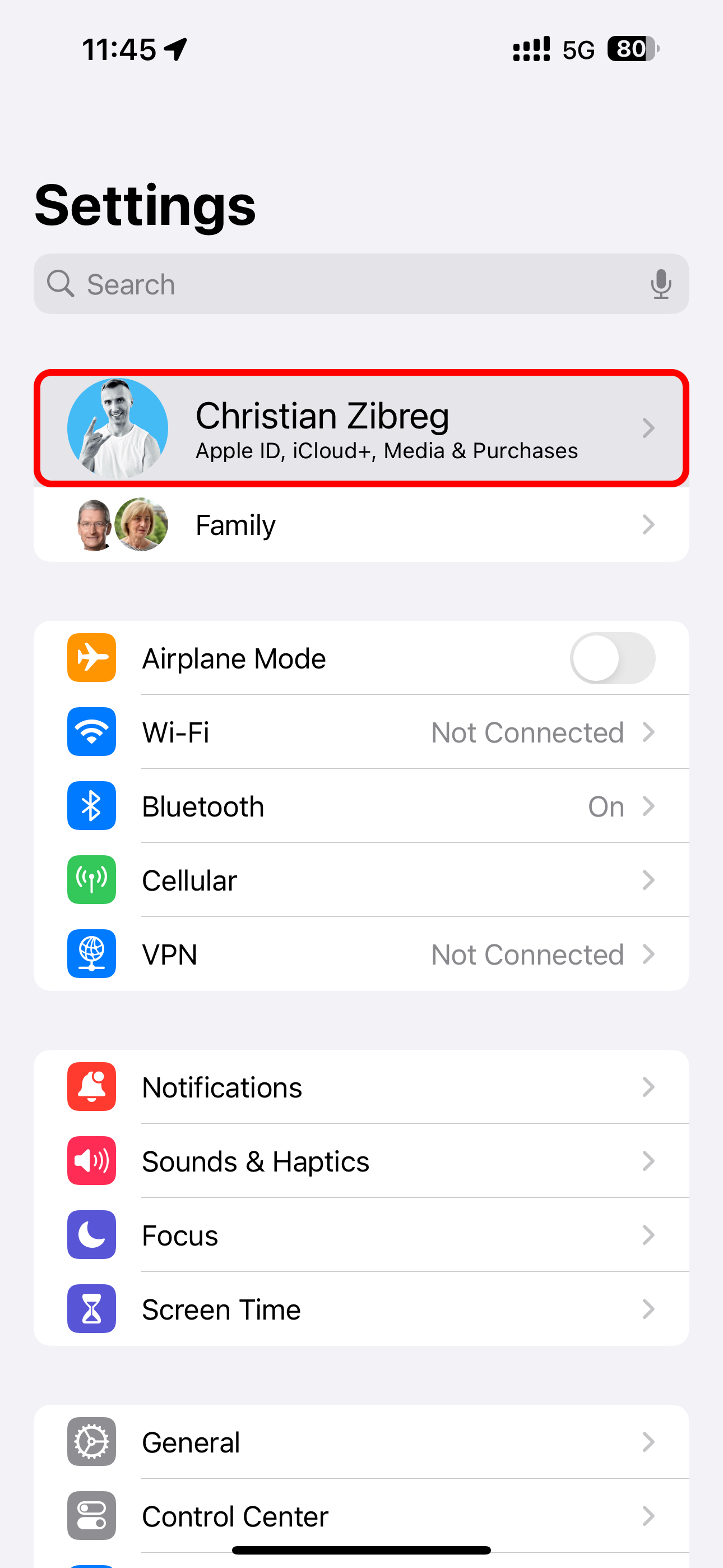
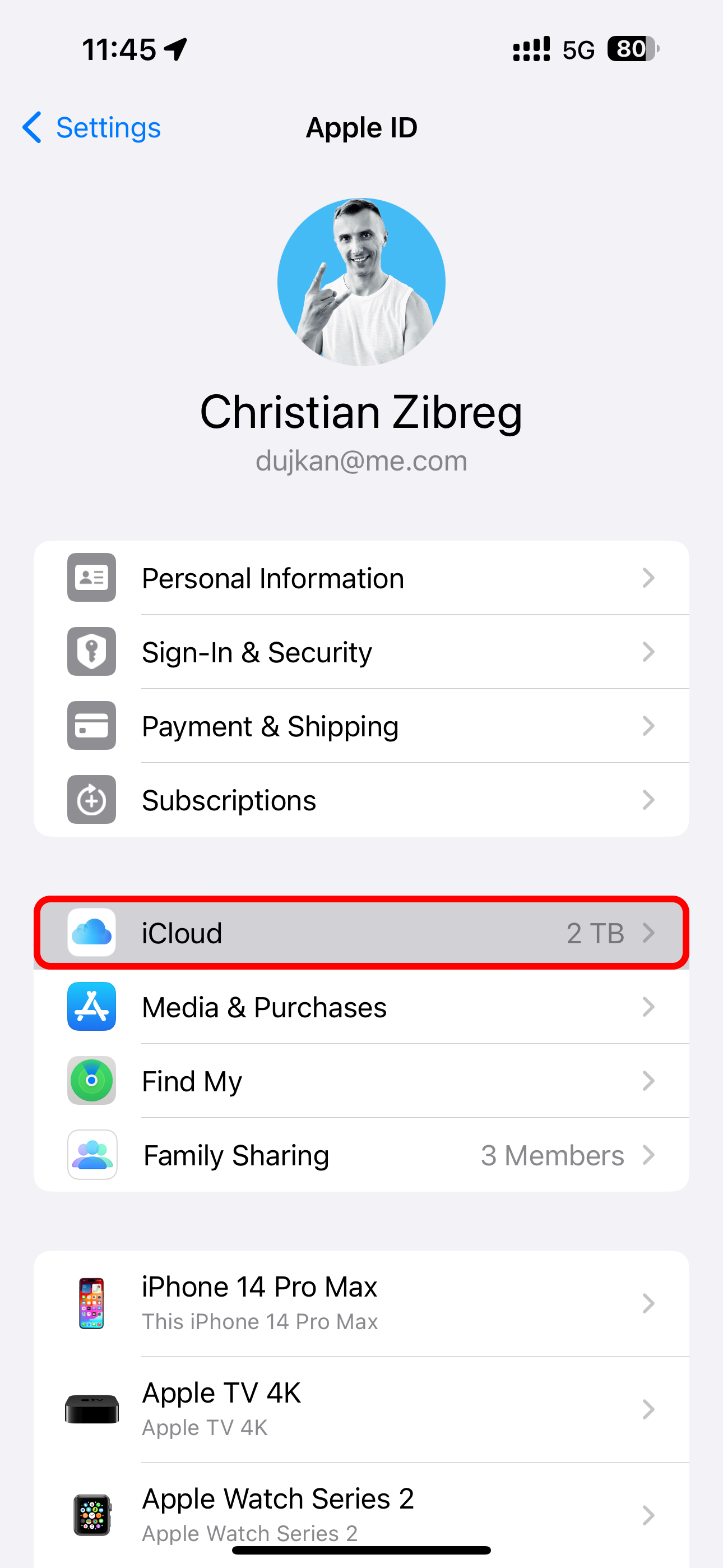
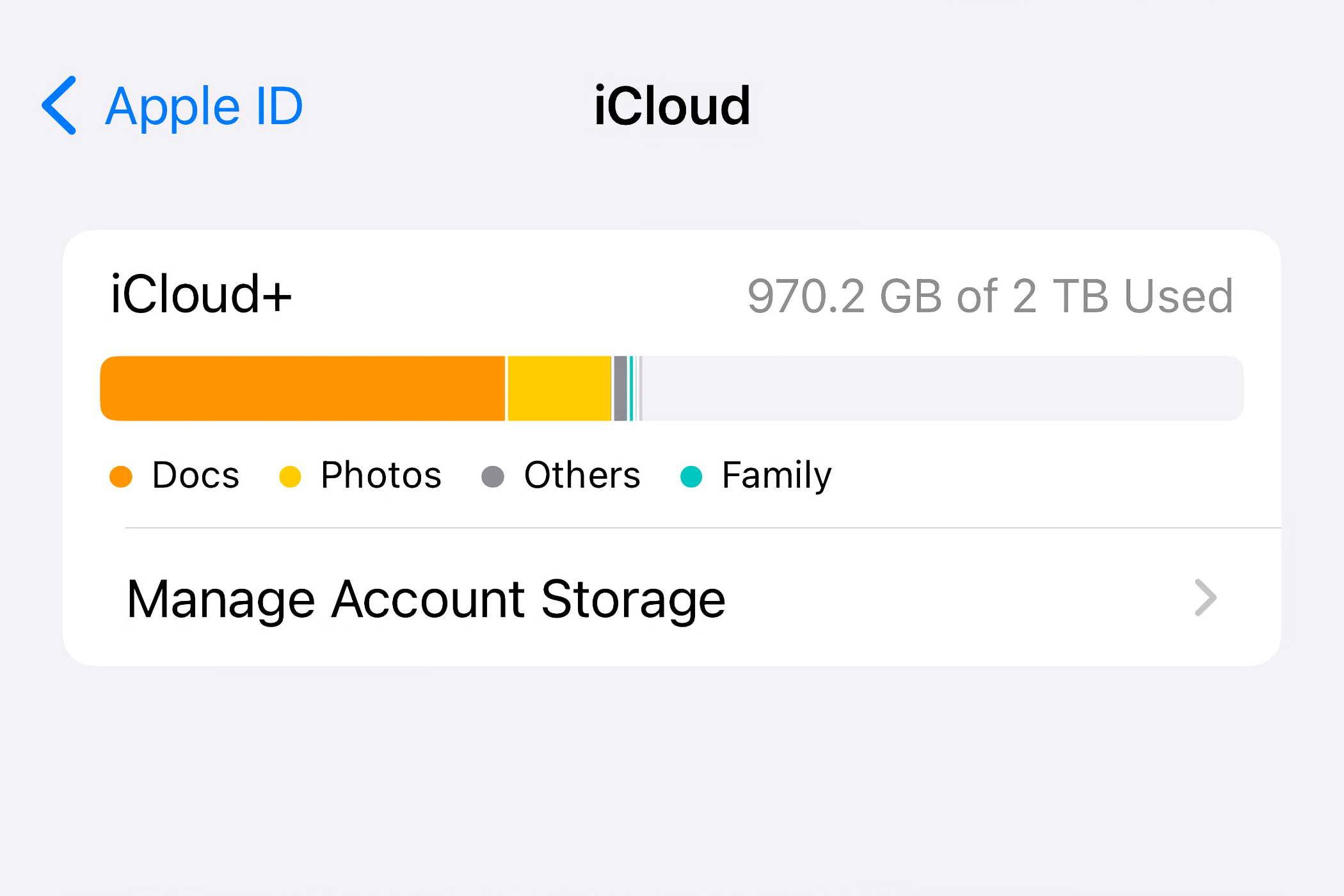
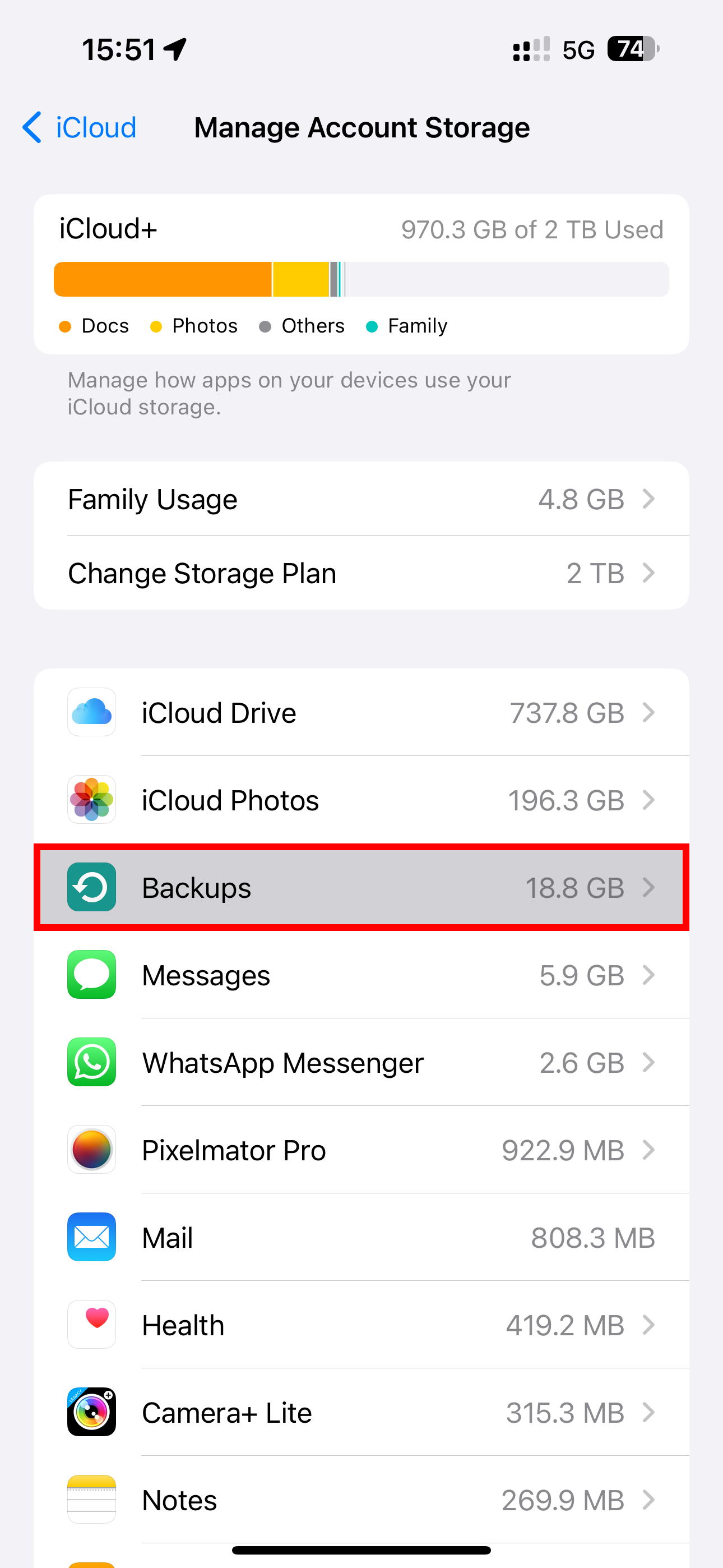
Before you start removing iCloud files, you can find out what’s taking up the most space to determine what to delete. Open the Settings (iOS/iPadOS) or System Settings app (Mac), select your Apple ID at the top, and choose “iCloud.”
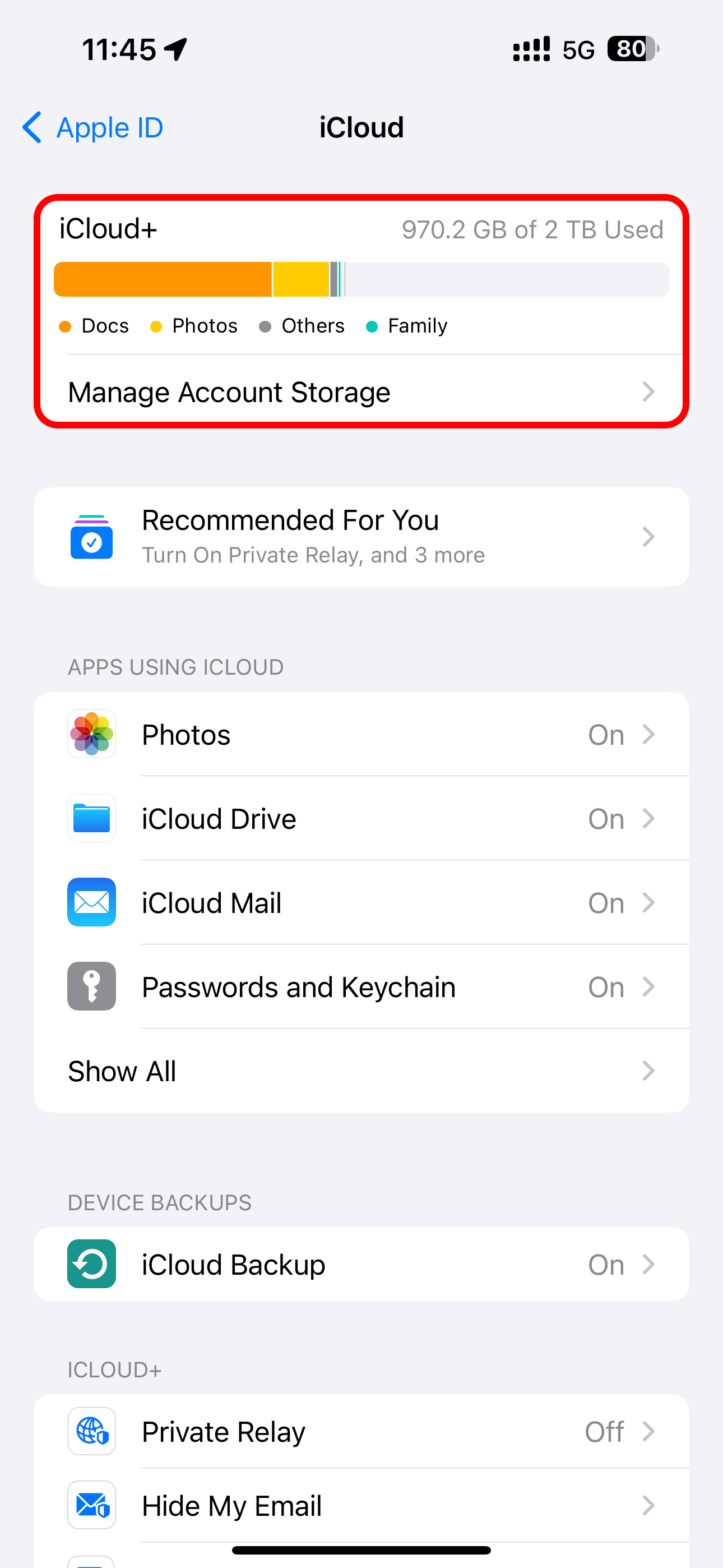
A handy bar chart at the top provides a visual breakdown of what’s filling up your iCloud. Here, you can also check how much iCloud storage space you have left in your account.
ALSO READ: Google Chrome now lets iPhone users add website shortcuts on home screen
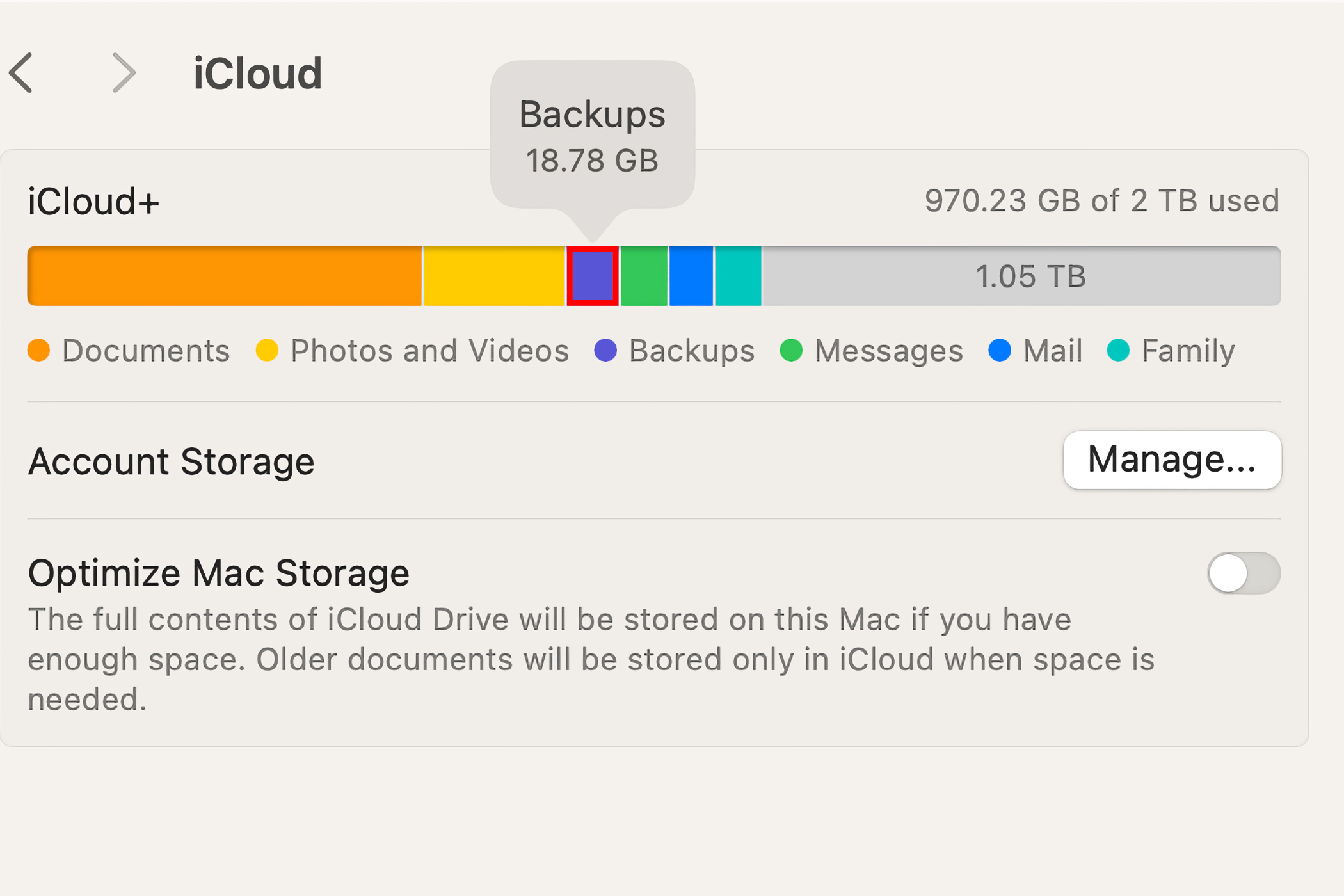
If you’re on a Mac, hover over sections like “Documents,” “Photos and Videos,” “Backups,” “Messages,” “Mail,” and “Family” to reveal per-category storage usage.
To manage iCloud storage access for the biggest storage hogs like iCloud Drive, Messages, Photos, Mail, or iCloud Backup and turn syncing on or off, select the feature under “Apps Using iCloud” in General > Storage in the Settings (iOS/iPadOS) or System Settings app (Mac)
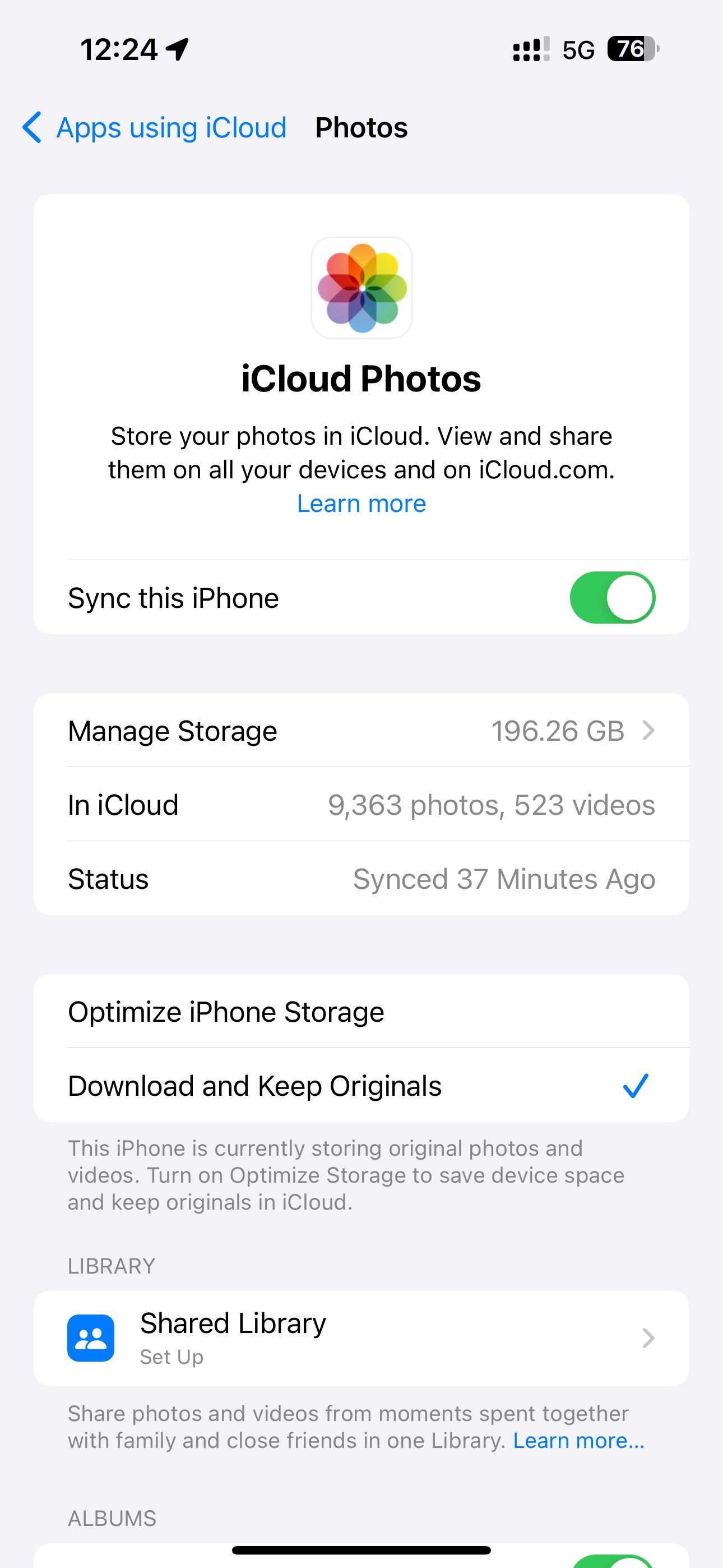
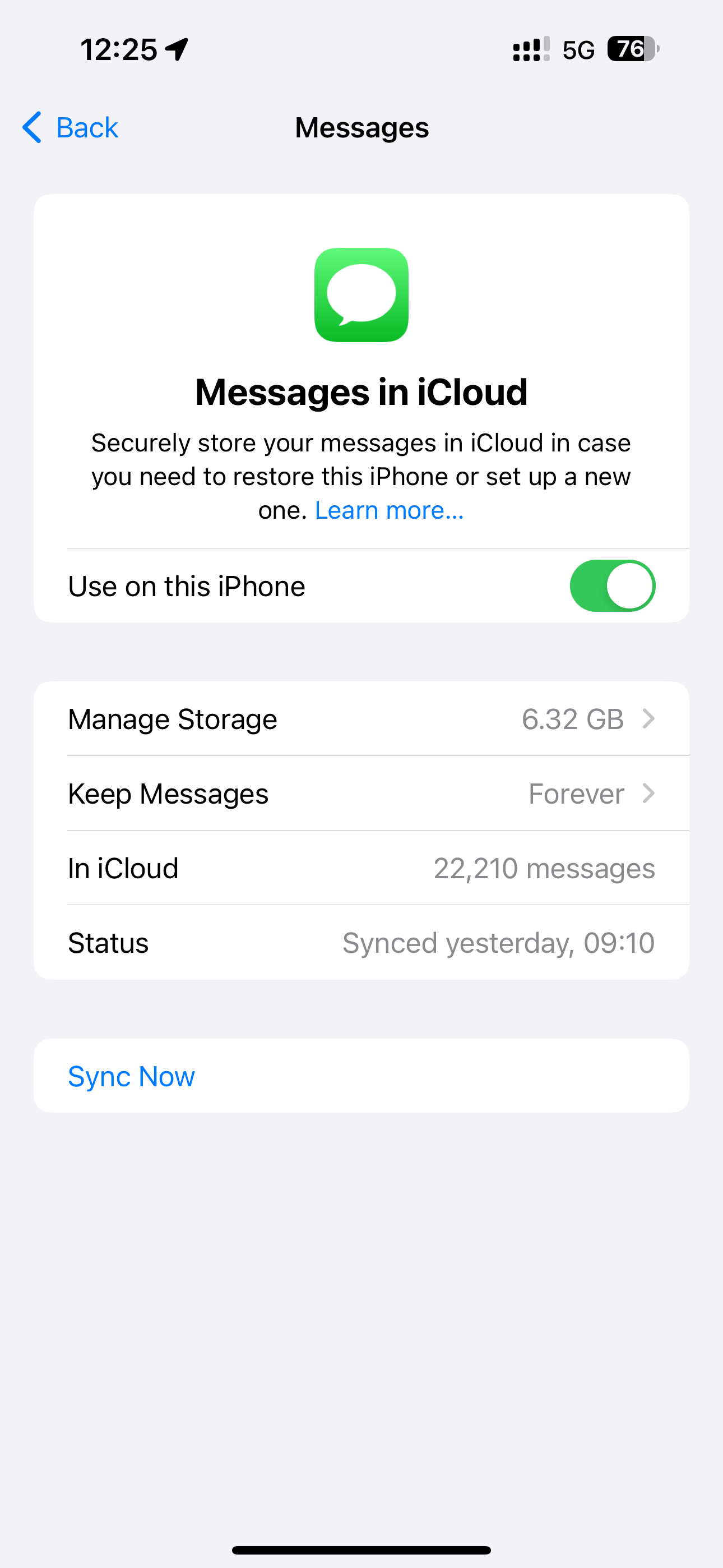
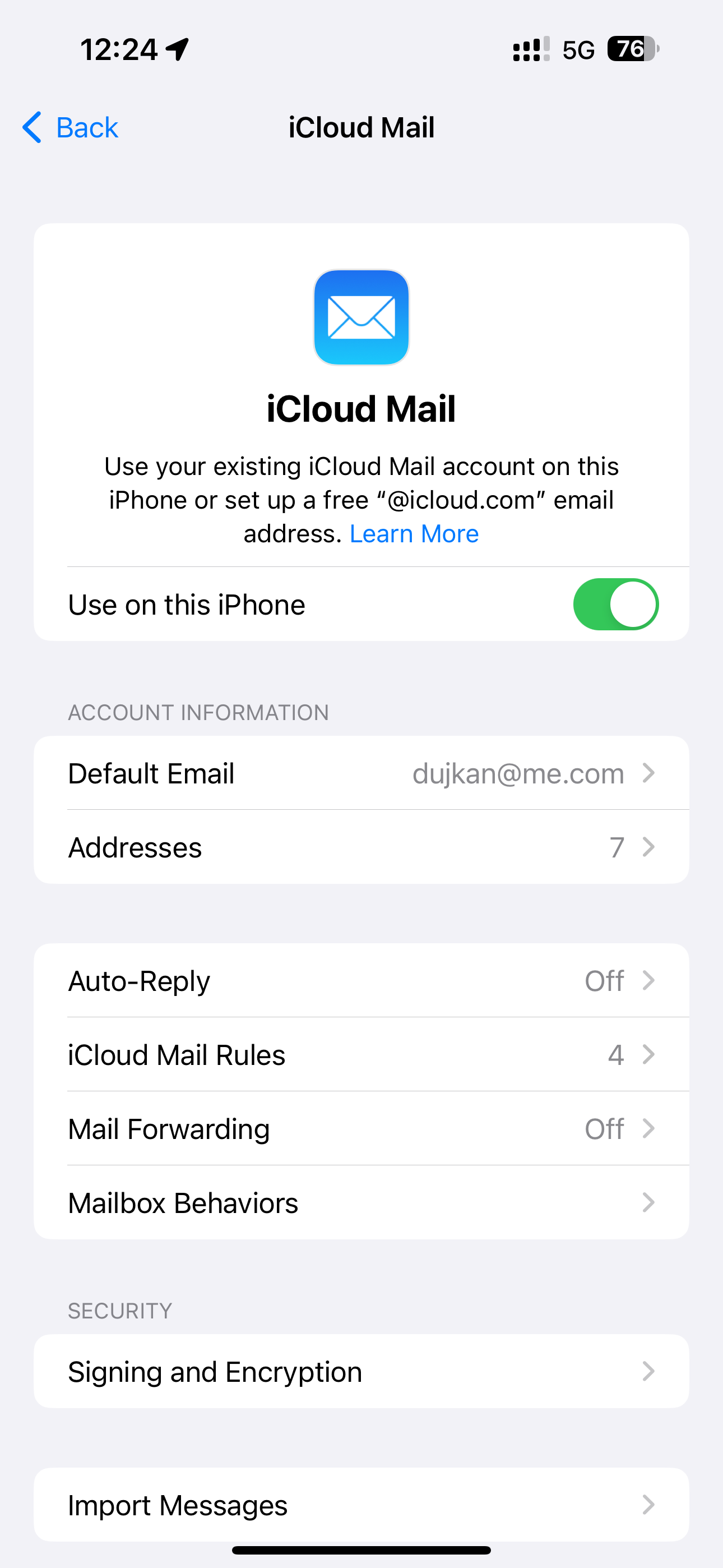
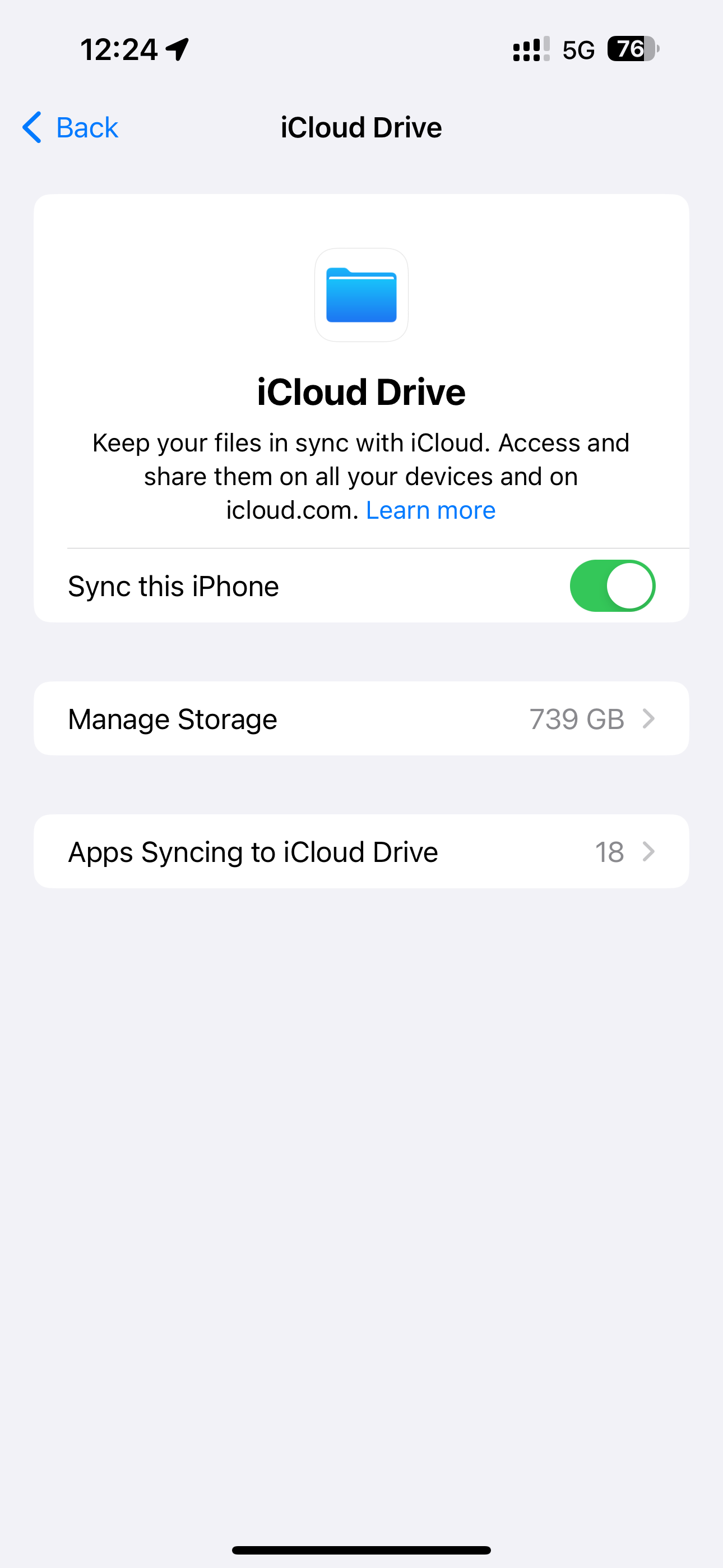
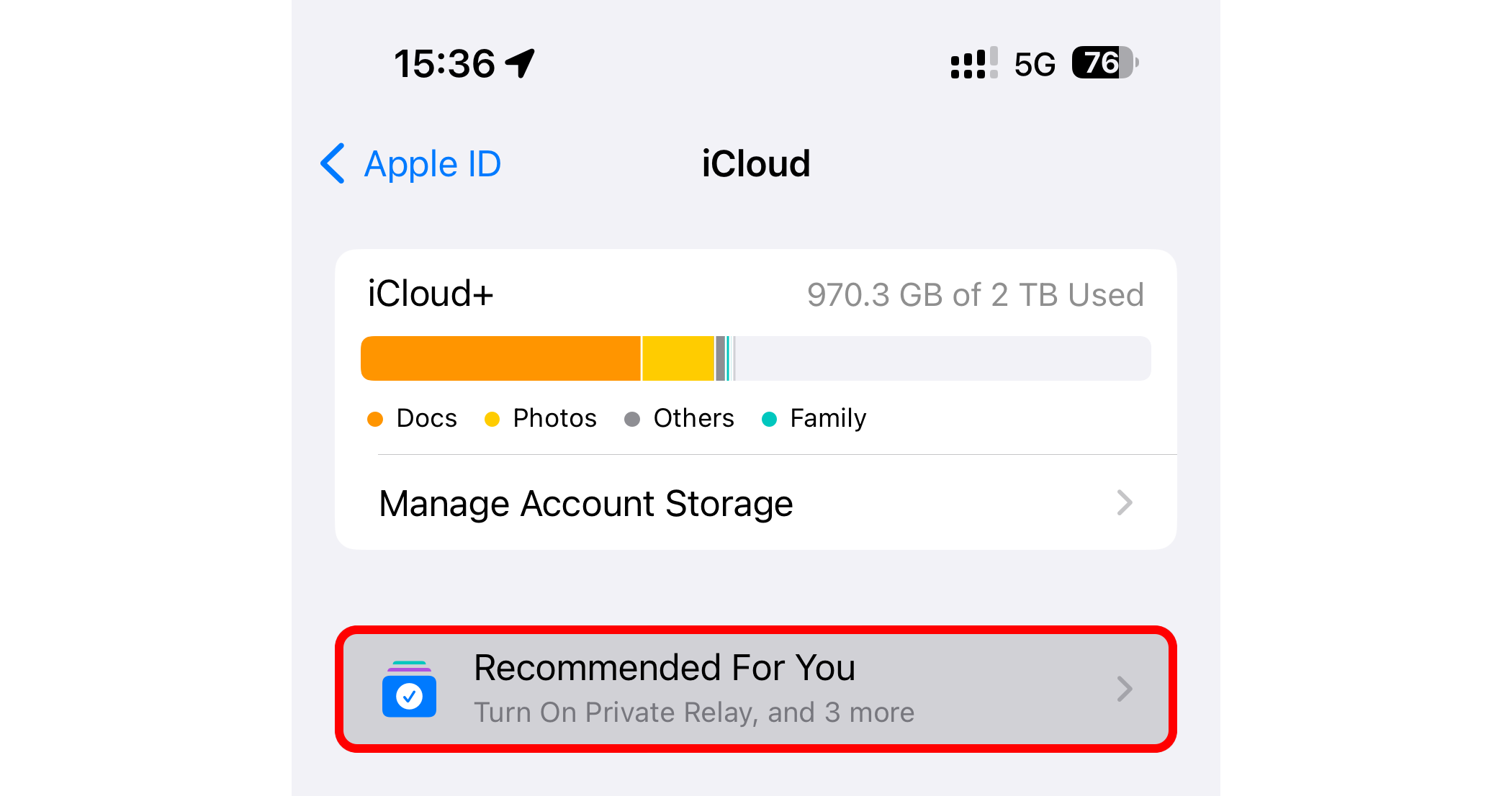
Depending on how you use your iCloud storage, recommendations may include slimming down the Photos library by identifying duplicate images, deleting large files and old backups, among other things.
Delete Outdated iPhone and iPad Backups
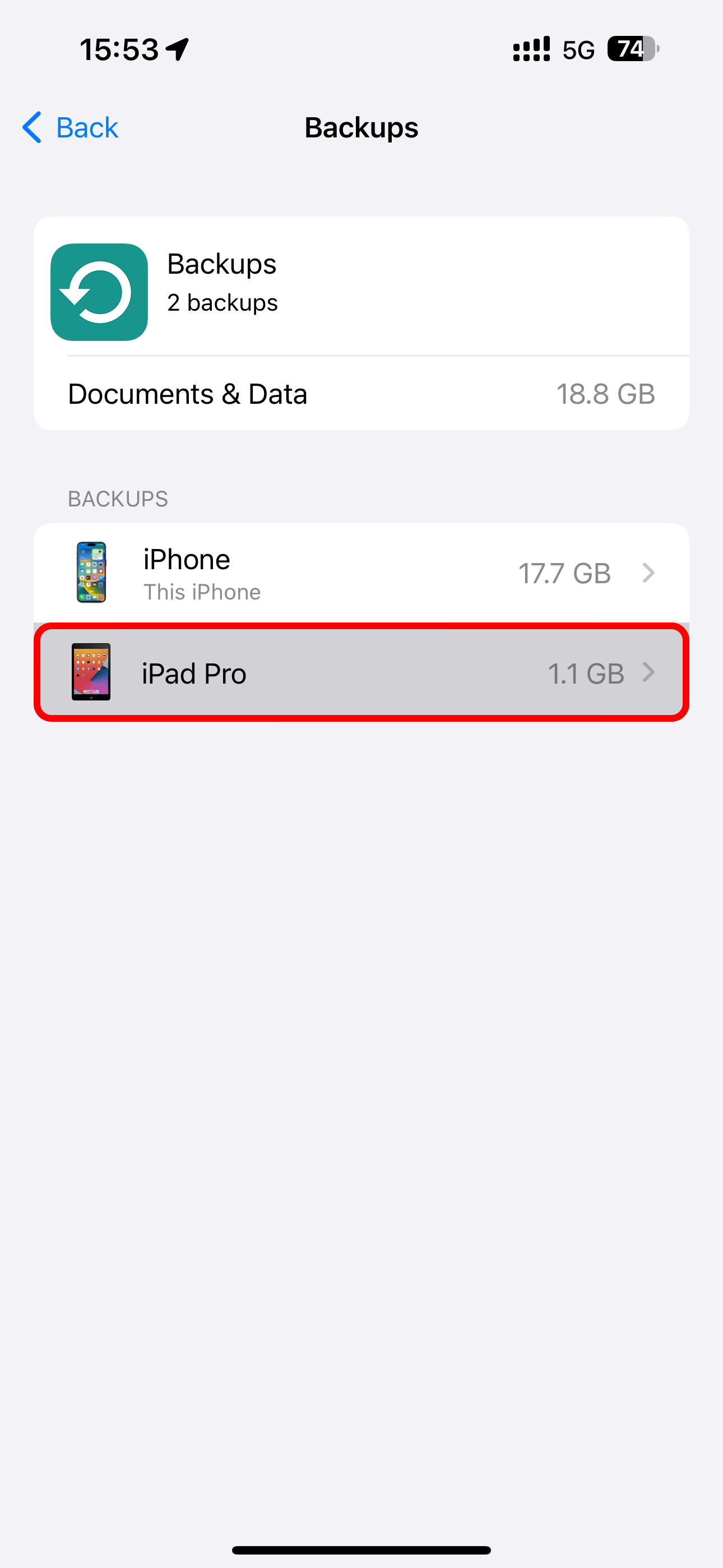
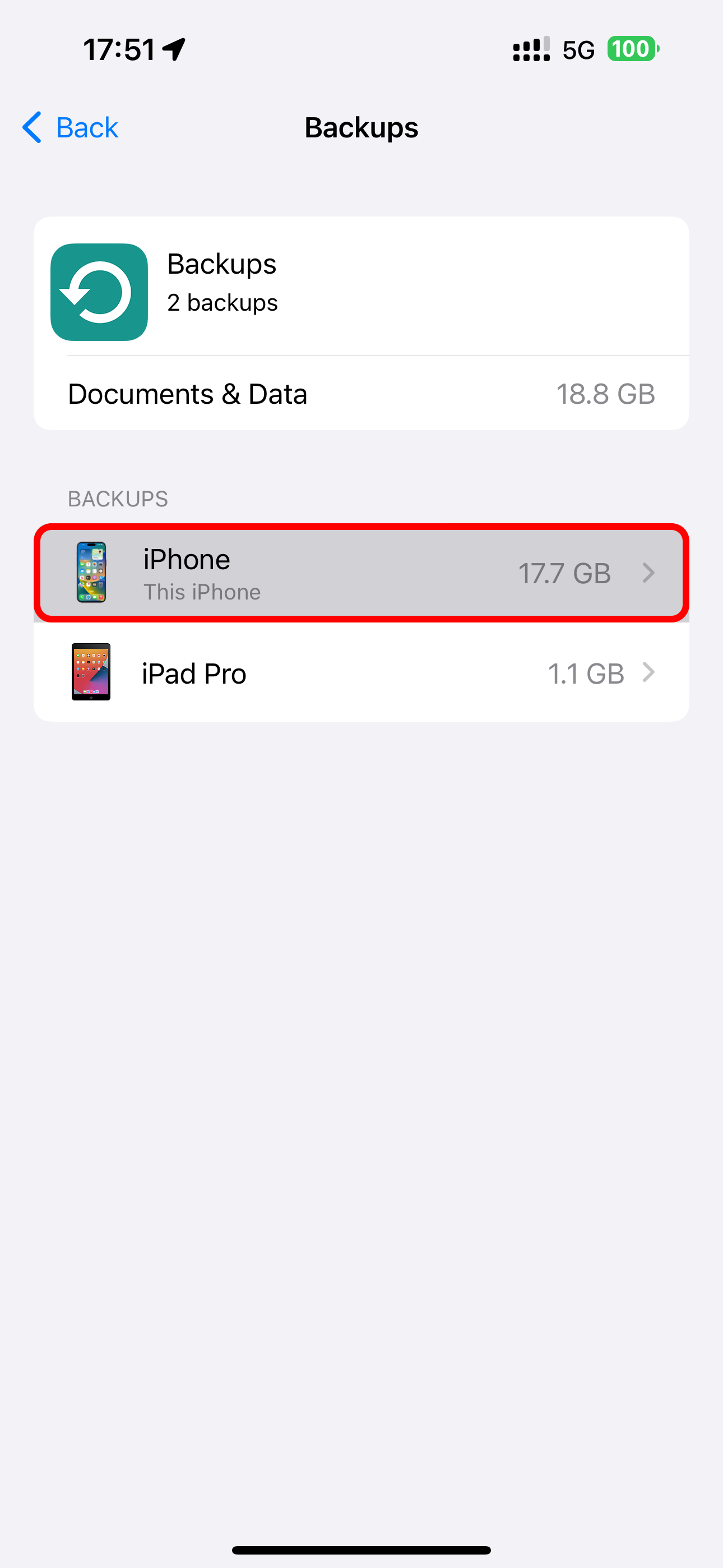
To see your iCloud backups, open the iCloud settings on your iPhone, iPad, or Mac, and choose “Manage Account Storage” or “Manage Storage” (iOS/iPadOS) or “Manage” next to “Account Storage” (macOS), then choose “Backups” and select a device for details.
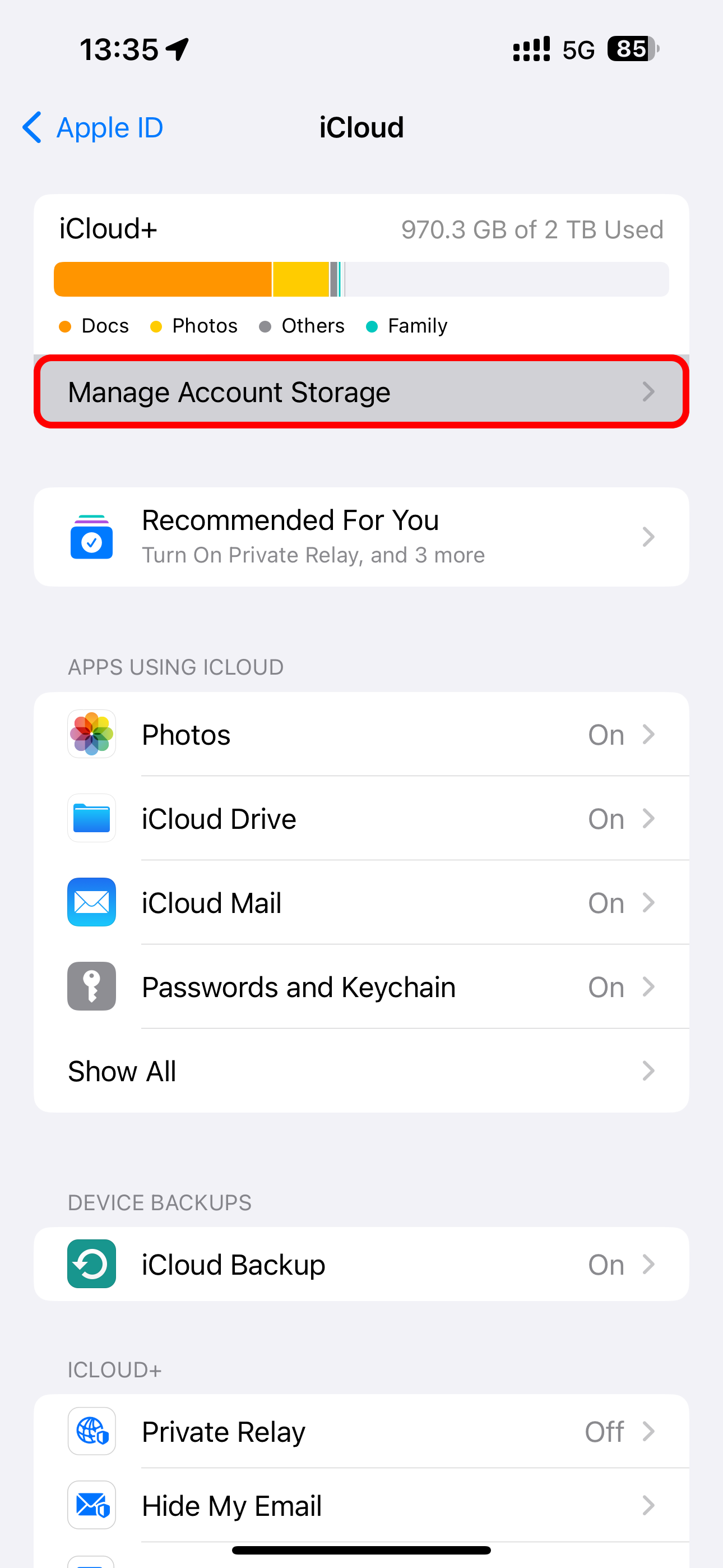
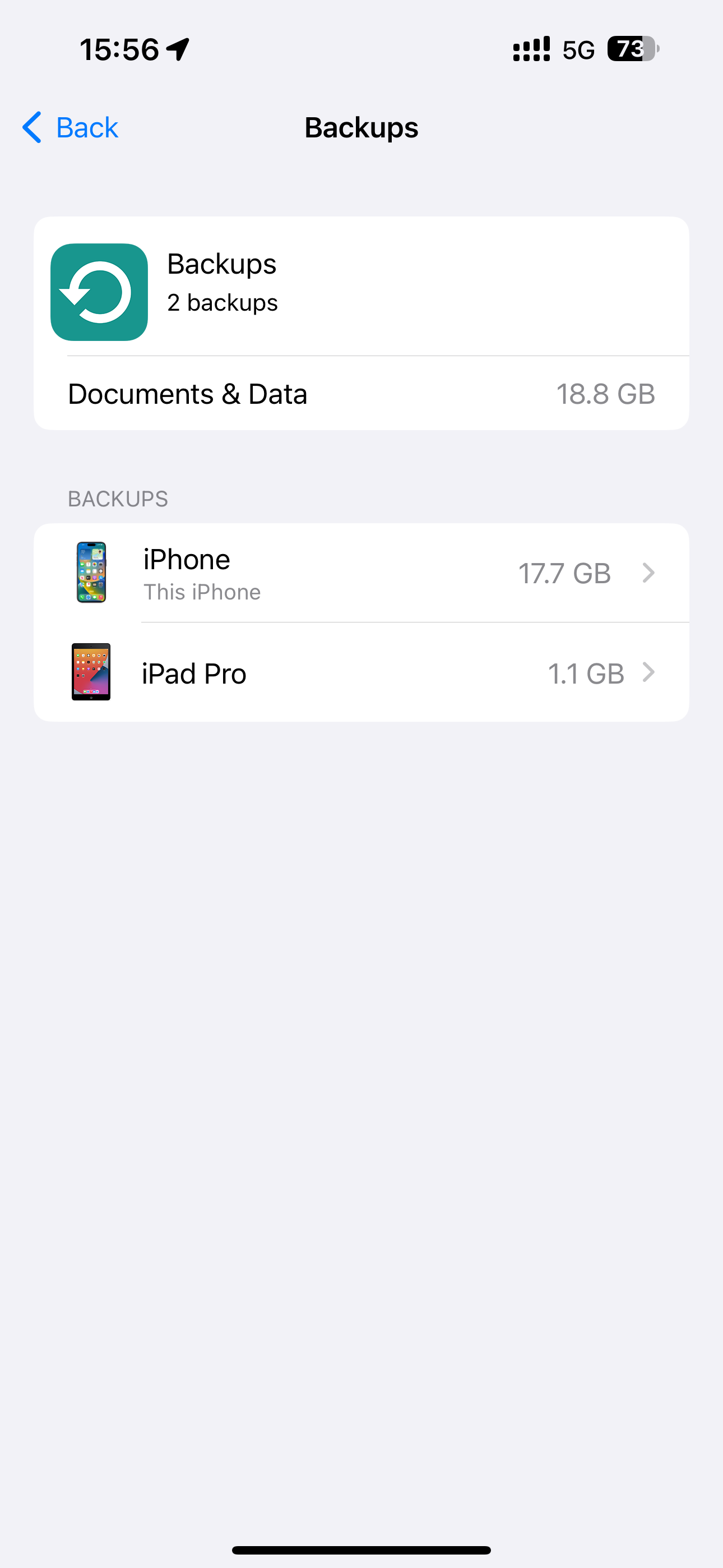
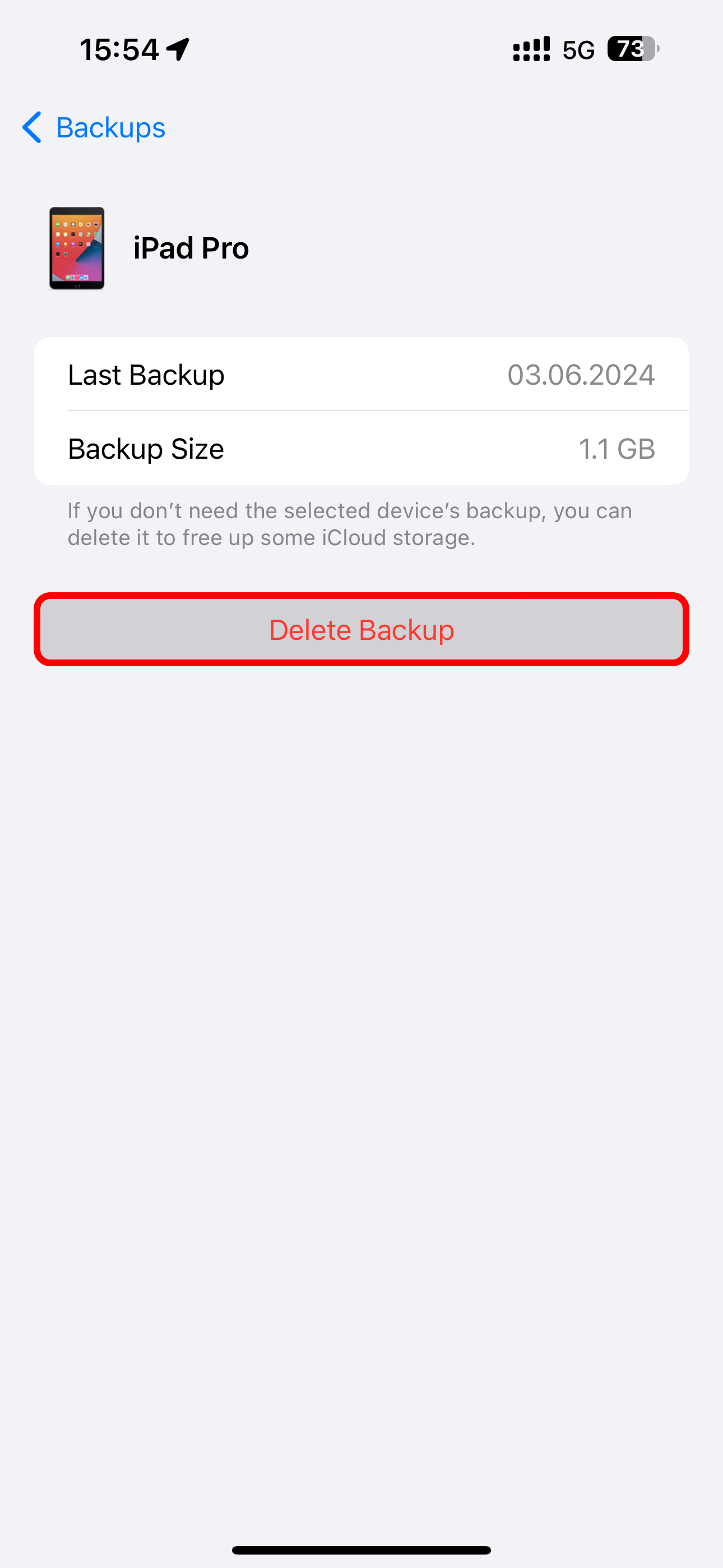
iCloud only keeps the latest backup for each of your devices. To delete a backup, select the device and choose “Delete Backup” or “Turn Off and Delete from iCloud” on iOS and iPadOS.
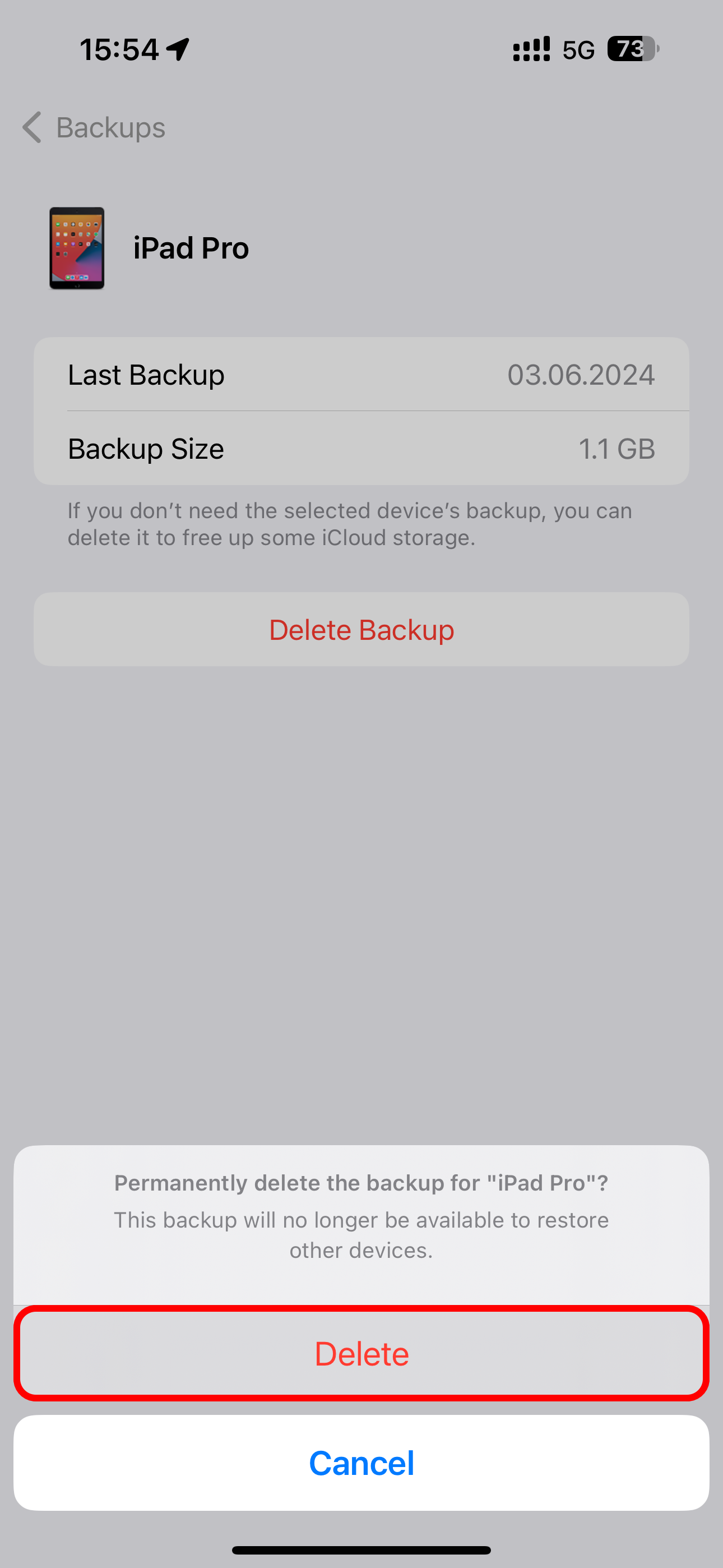
On macOS, select a listed backup and click “-” in the lower-left corner.
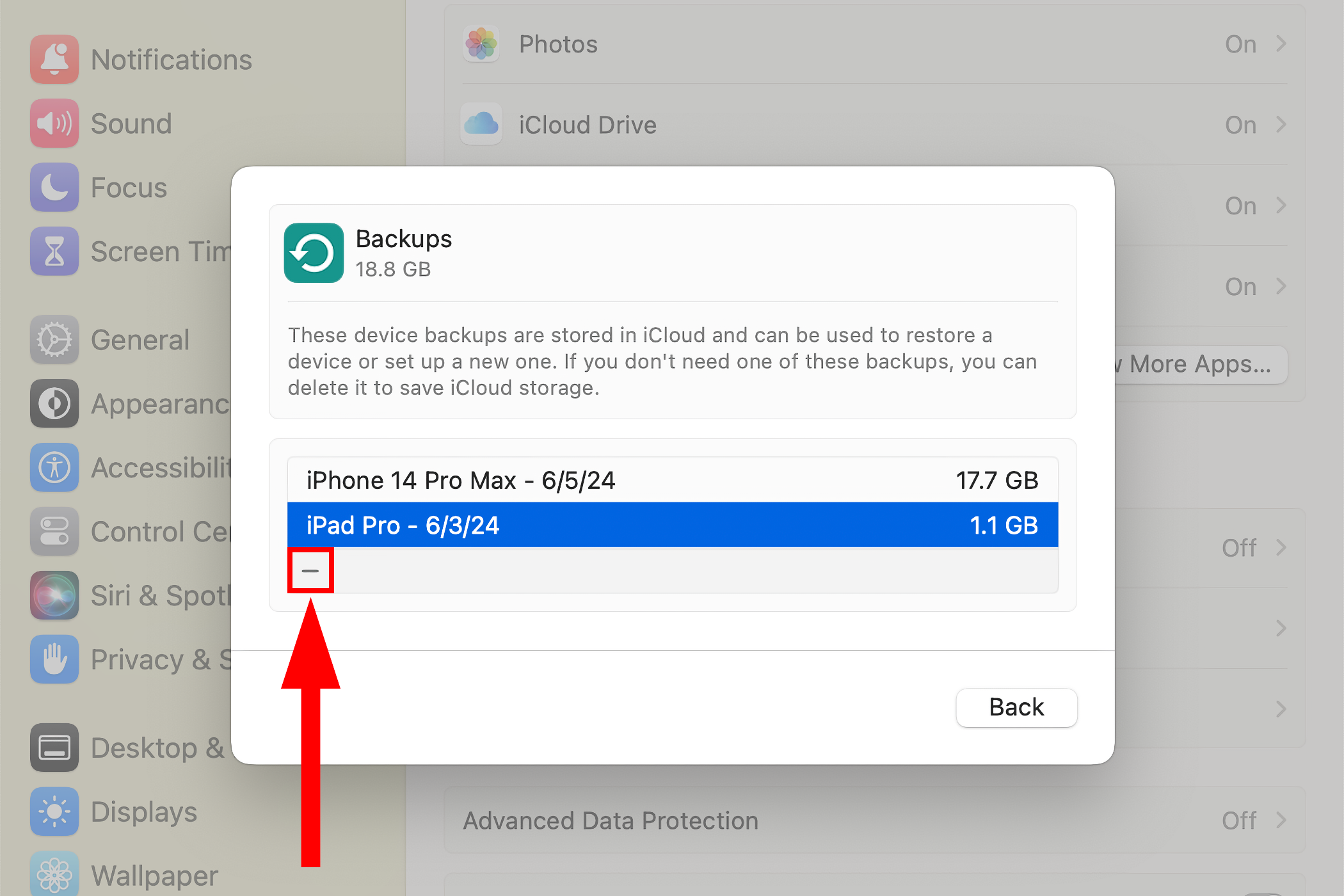
This will permanently remove the entire backup archive from your iCloud account and switch off the iCloud Backup feature for that device.
NB: When you disable the iCloud Backup option , your iPhone will stop automatically backing up to iCloud when plugged in, locked, and connected to Wi-Fi, but its backup will stay in iCloud.
With iCloud Backup disabled, be sure to back up your iPhone manually via the Finder on macOS or with iTunes on Windows by plugging it into a computer. That way, multi-gigabyte device backups will take up storage space on your Mac or PC rather than your space-starved iCloud account.
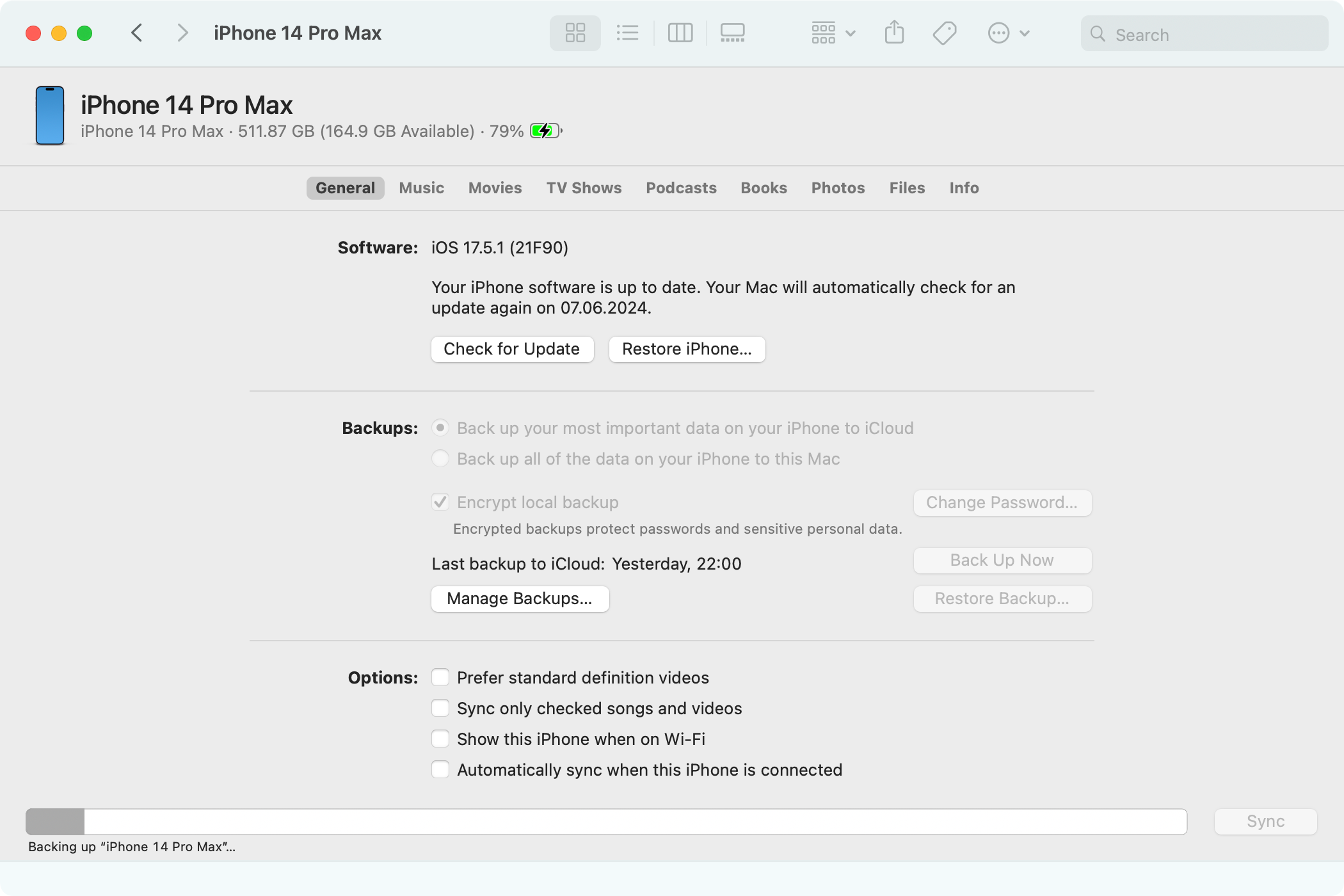
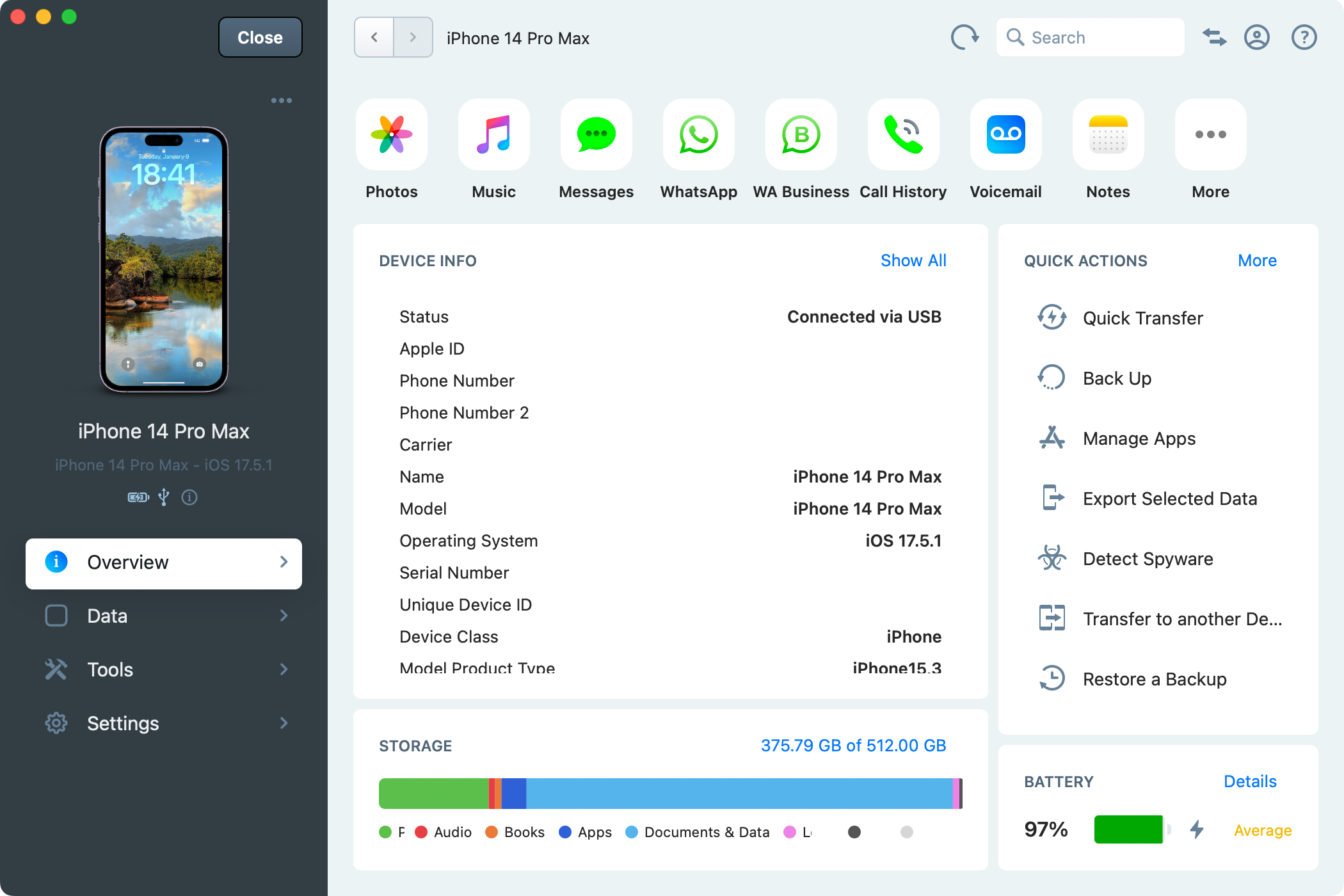
Backing up to a computer will ensure you can quickly restore your iPhone or iPad using a Mac and get everything back to how it was should you ever lose it or need to reset it. If you’re a power user, you may want to use a specialized app like iMazing to selectively back up and restore files from iPhones and iPads, create local backup snapshots, and transfer media.
Exclude Apps From Your iPhone Backups
If you prefer to continue backing up your iPhone or iPad to iCloud, you may want to exclude specific apps from future backups. Choose “Backups” from the “Manage Account Storage” screen in the iCloud settings, select the backup for the device you’re using, and disable the apps whose data you want excluded from future backups.
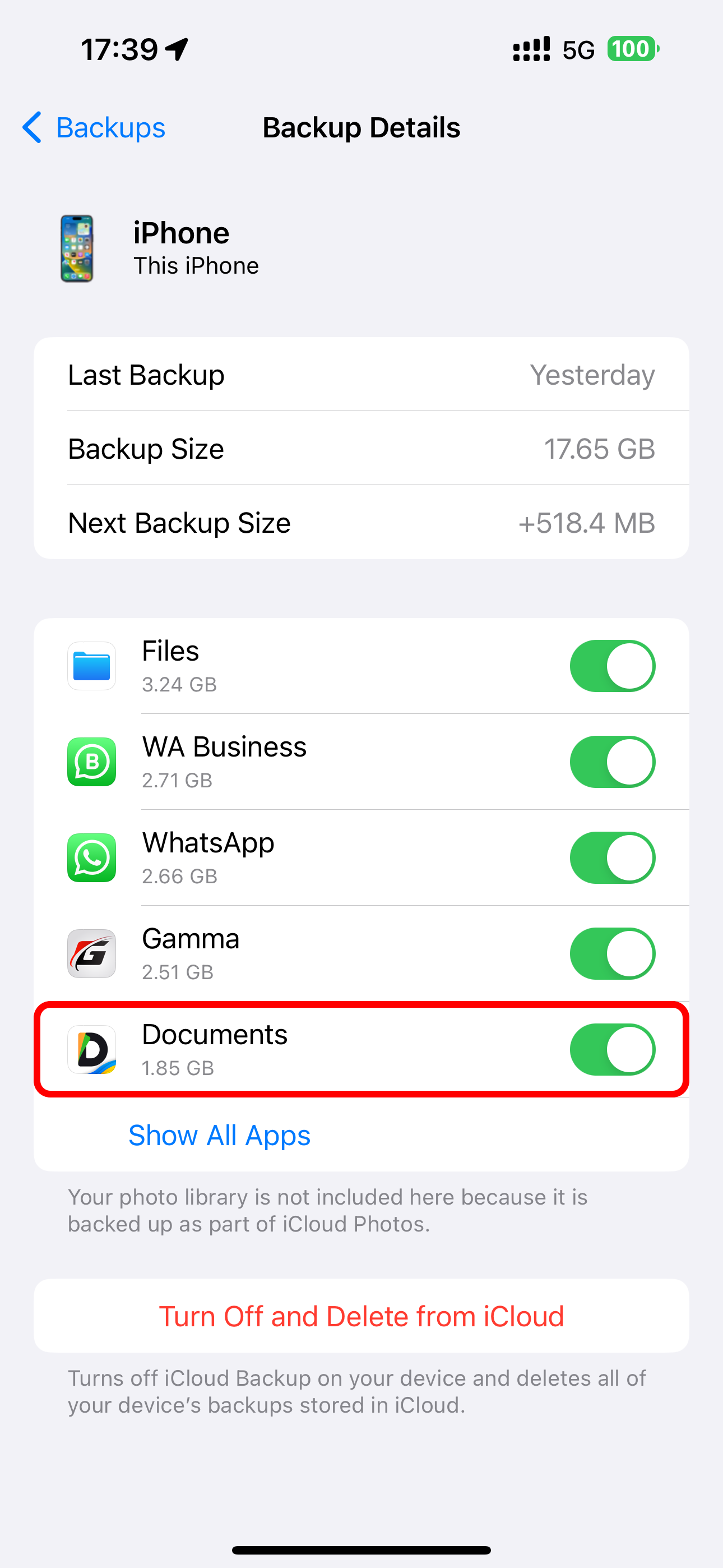
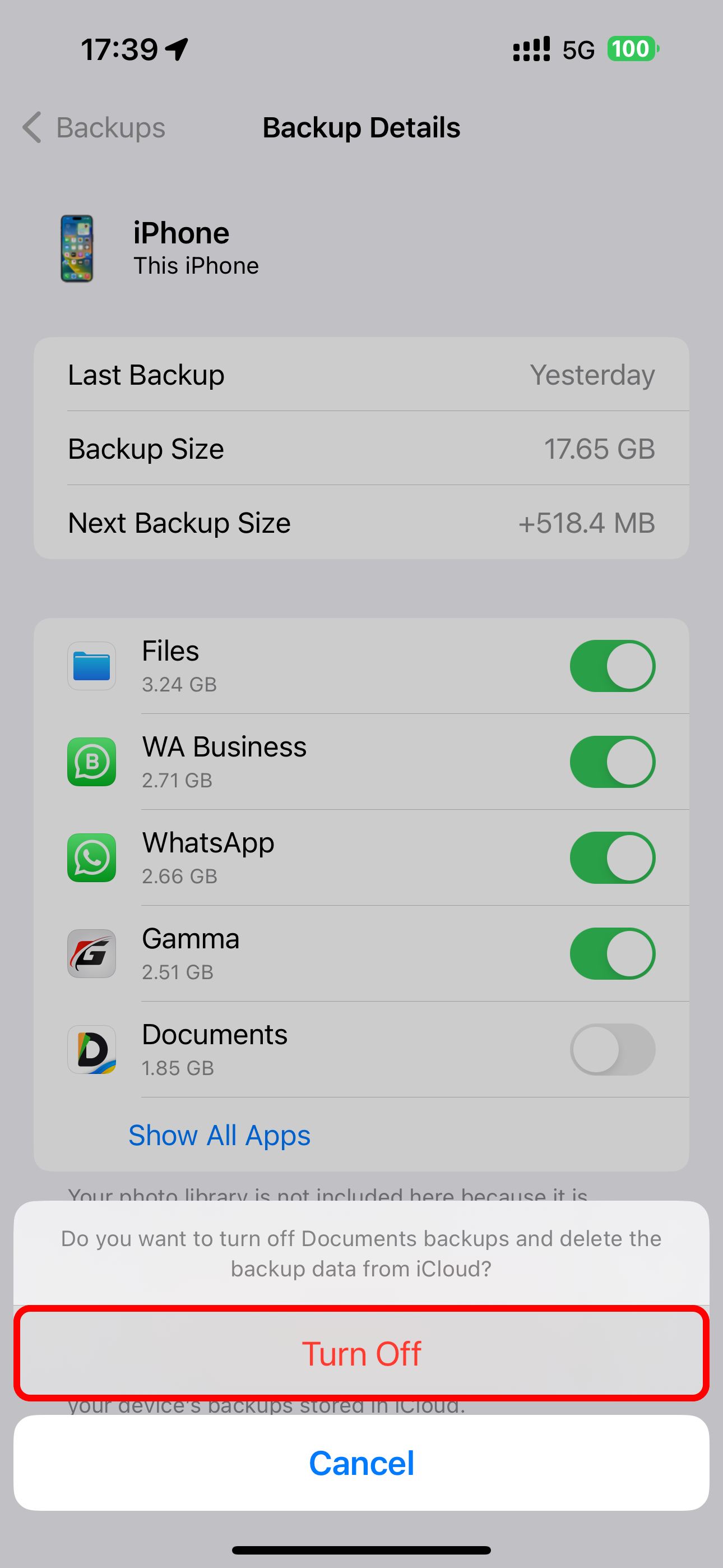
You can safely disable iCloud for apps that sync data online anyway, like Pocket or Facebook.
Back Up Your Photos to a Different Cloud Service (How to Free Up iCloud Storage Space)
Photos can eat up a lot of space. With iCloud Photos enabled, your iPhone will back up full-resolution versions of any images and videos you take to your iCloud account. This can be convenient, but it also means your iCloud storage can quickly fill up.
To free up space lost to photos and videos, disable Photos sync by selecting “Photos” from the iCloud settings screen and switching off “Sync this iPhone.”
With iCloud Photos disabled, you’re wholeheartedly recommended to try Google Photos, Dropbox, or Flickr, which can automatically back up your photos to a separate pool of cloud storage that’s often bigger than iCloud. That way, you’ll have a backup copy of your photos and videos stored online and retain your precious iCloud storage for other functions.
Delete App Documents and Data From iCloud
Some apps store large amounts of data in iCloud, such as documents, settings, and saved games. These bits of data sync between all your devices and count toward your iCloud storage. You can delete these files if you don’t need them.
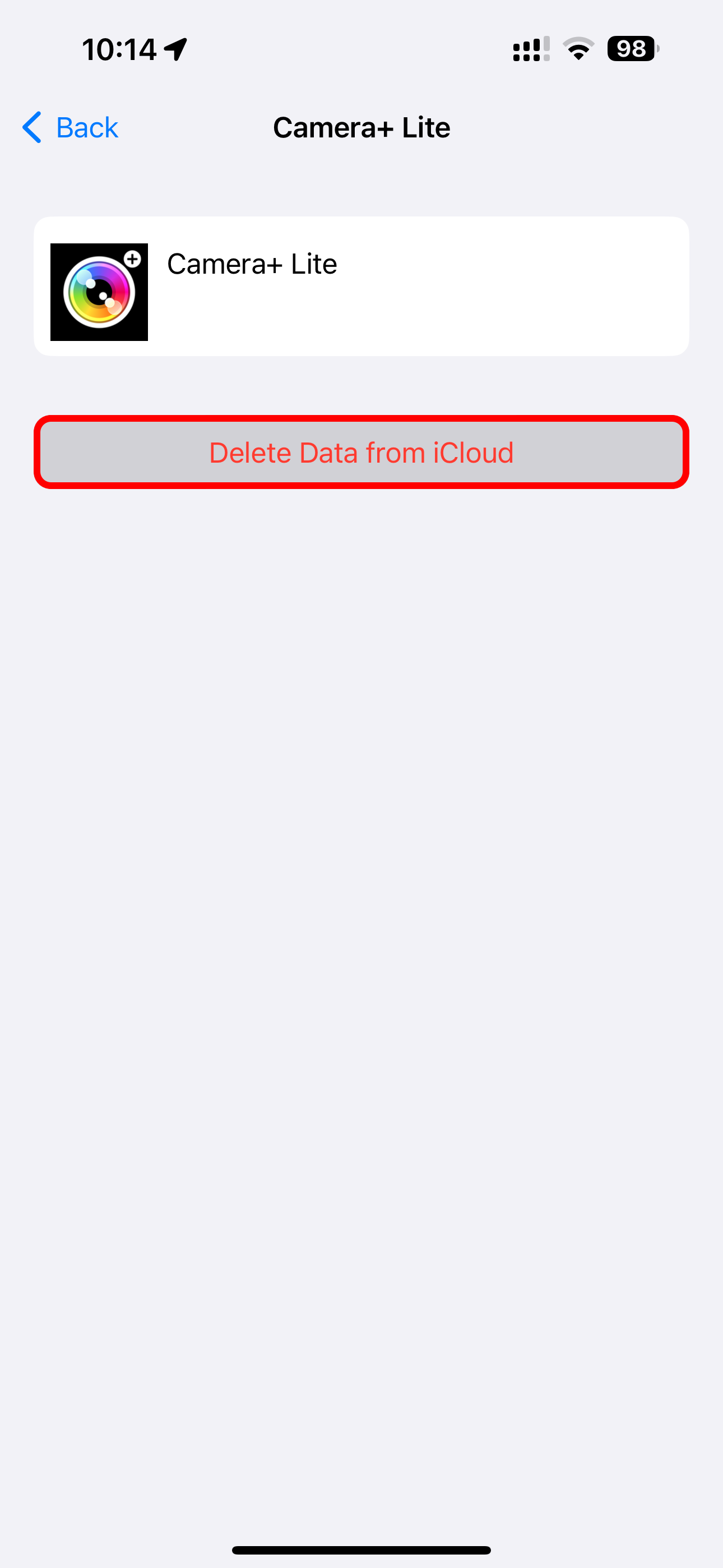
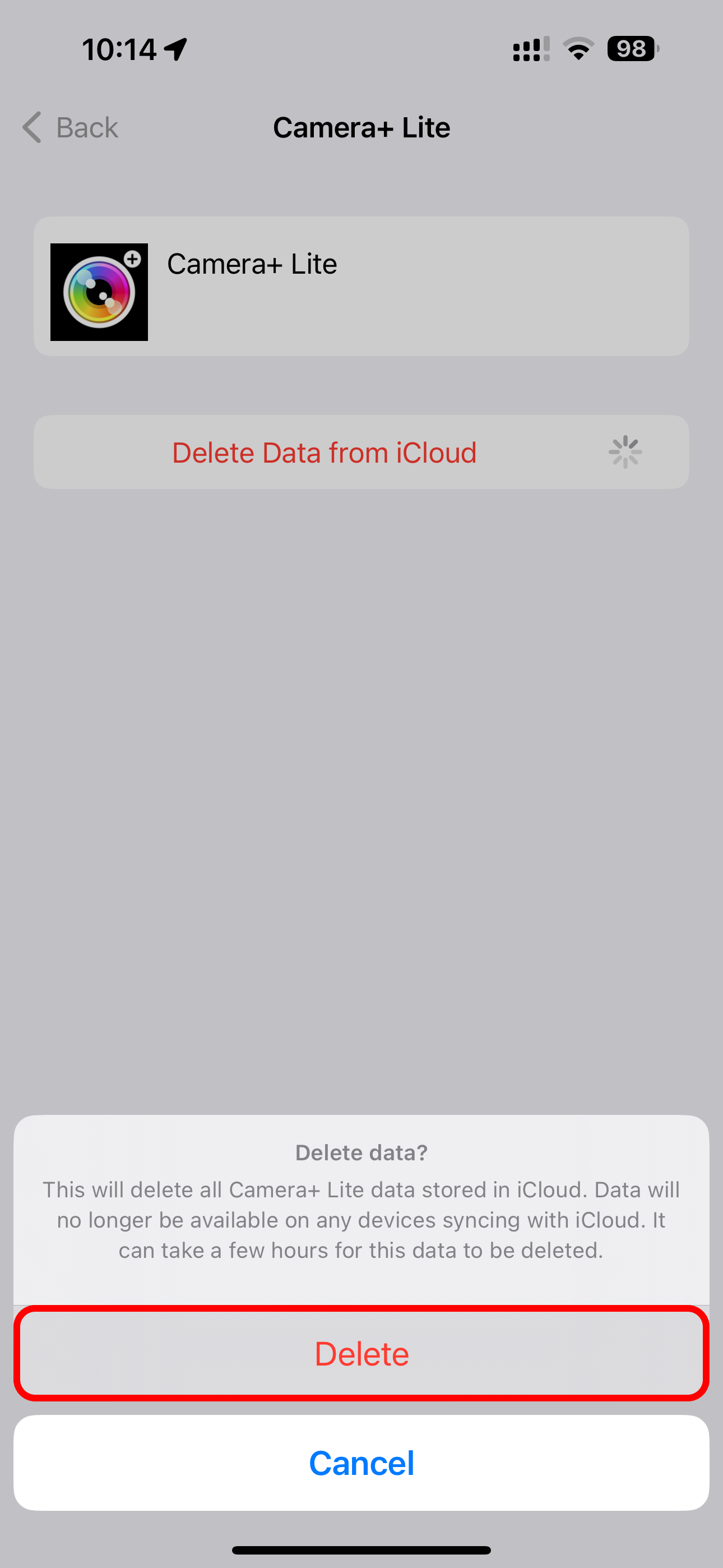
Select any app you don’t care about on iCloud’s “Manage Storage” screen and choose “Delete Data from iCloud” or “Delete from iCloud.”
With iCloud Photos disabled, you’re wholeheartedly recommended to try Google Photos, Dropbox, or Flickr, which can automatically back up your photos to a separate pool of cloud storage that’s often bigger than iCloud. That way, you’ll have a backup copy of your photos and videos stored online and retain your precious iCloud storage for other functions.
Delete App Documents and Data From iCloud
Some apps store large amounts of data in iCloud, such as documents, settings, and saved games. These bits of data sync between all your devices and count toward your iCloud storage. You can delete these files if you don’t need them.
Select any app you don’t care about on iCloud’s “Manage Storage” screen and choose “Delete Data from iCloud” or “Delete from iCloud.”
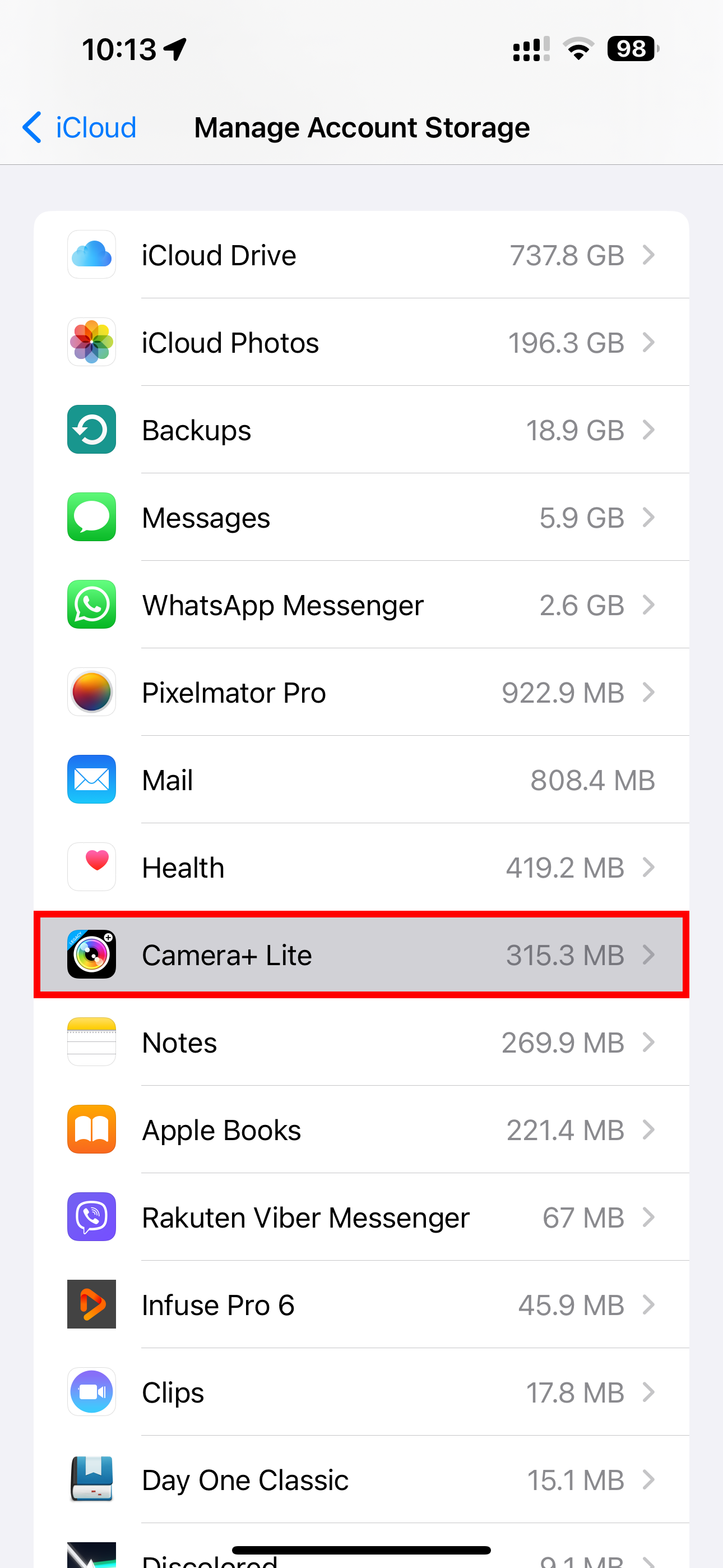
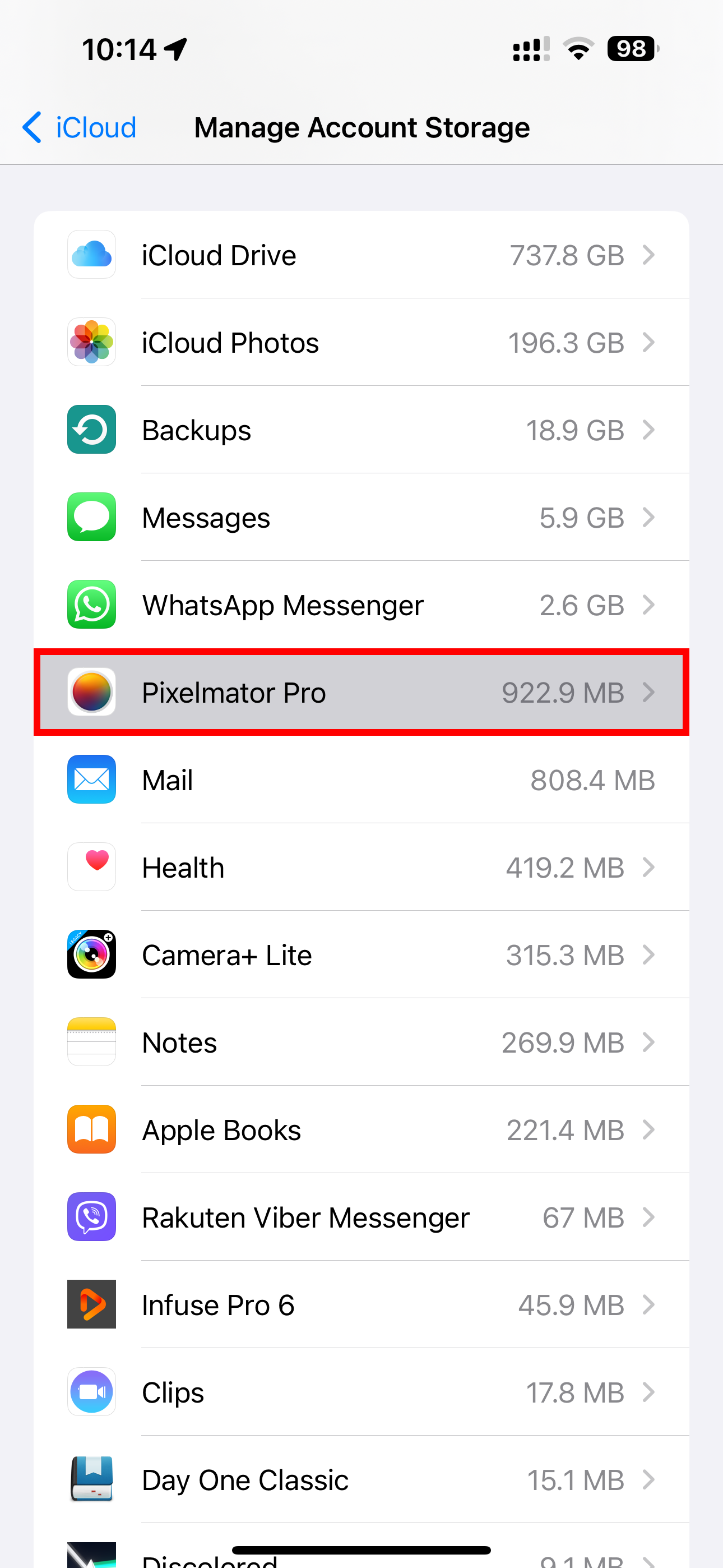
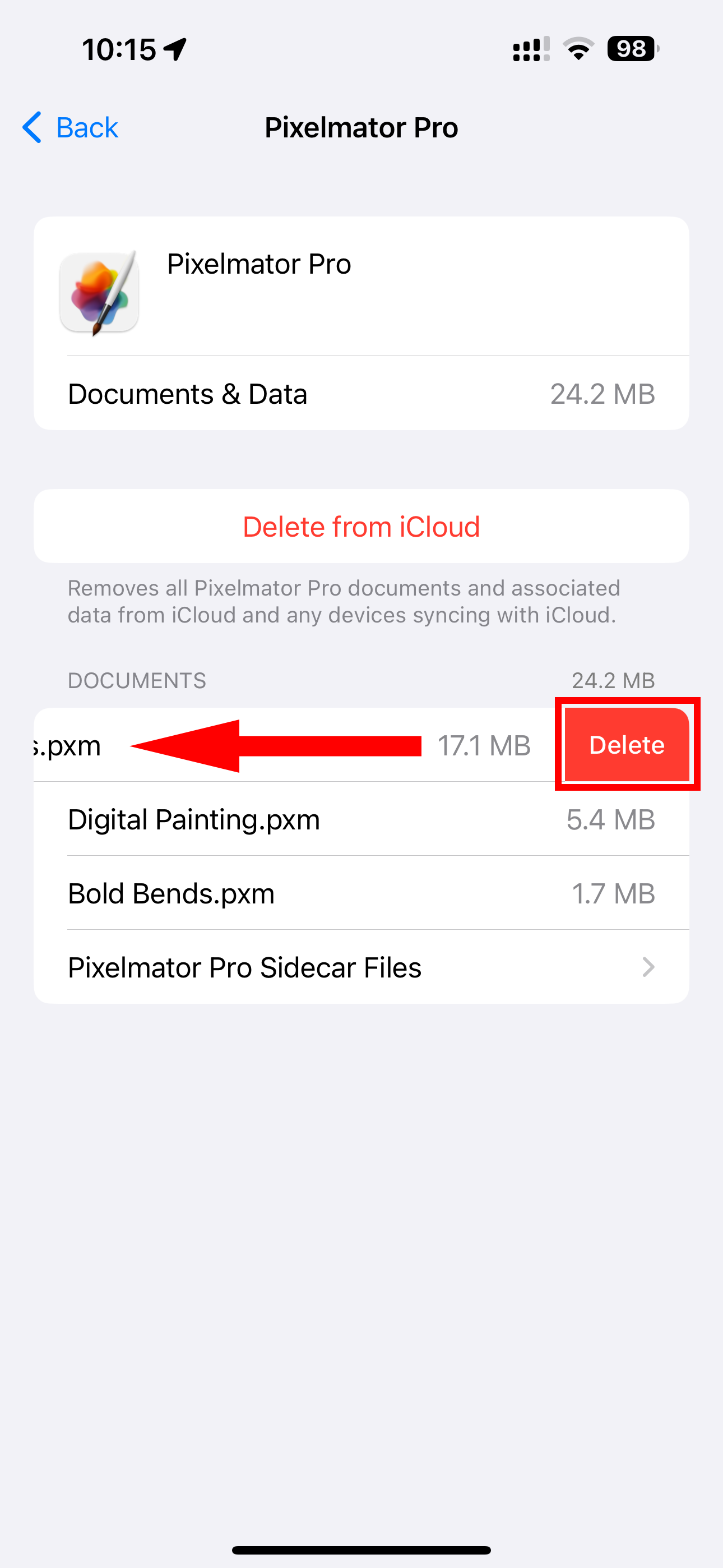
For some apps, you can delete specific files. For instance, I have some dormant projects in the Pixelmator image editor that I no longer need. I selected Pixelmator from iCloud’s “Manage Storage” screen, swiped a file to the left, and chose “Delete” to clear the file from iCloud.
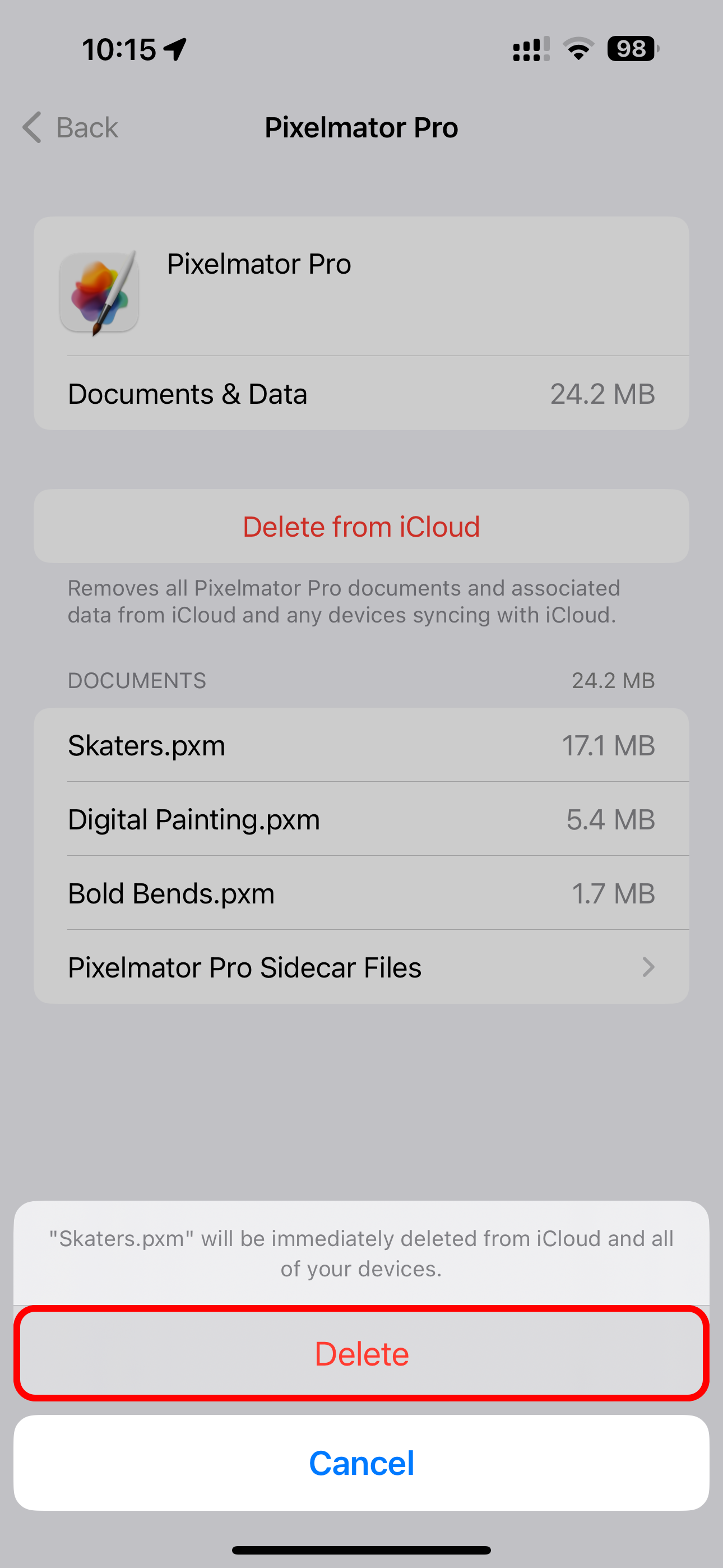
Be careful when doing this, though, as you could delete essential documents and files you might want to keep.
Triage Your iCloud Mail Inbox (How to Free Up iCloud Storage Space)
If you’re using Apple’s iCloud Mail, your emails count toward your iCloud storage quota. You can free up space by deleting old iCloud emails, especially those with large file attachments.
Select your iCloud Mail inbox in the Mail app on iOS and touch the “Edit” button, then select messages to delete and hit the “Trash” option.
o view only emails with attachments, select your inbox and touch a button in the bottom-left corner which resembles a generic list, then hit “Filtered By” at the bottom center, turn on “Only Mail with Attachments,” select everything under “Include” and “Addressed,” and hit “Done.”
Otherwise, you can visit the iCloud Mail website and delete unwanted emails from within the web interface on any device.
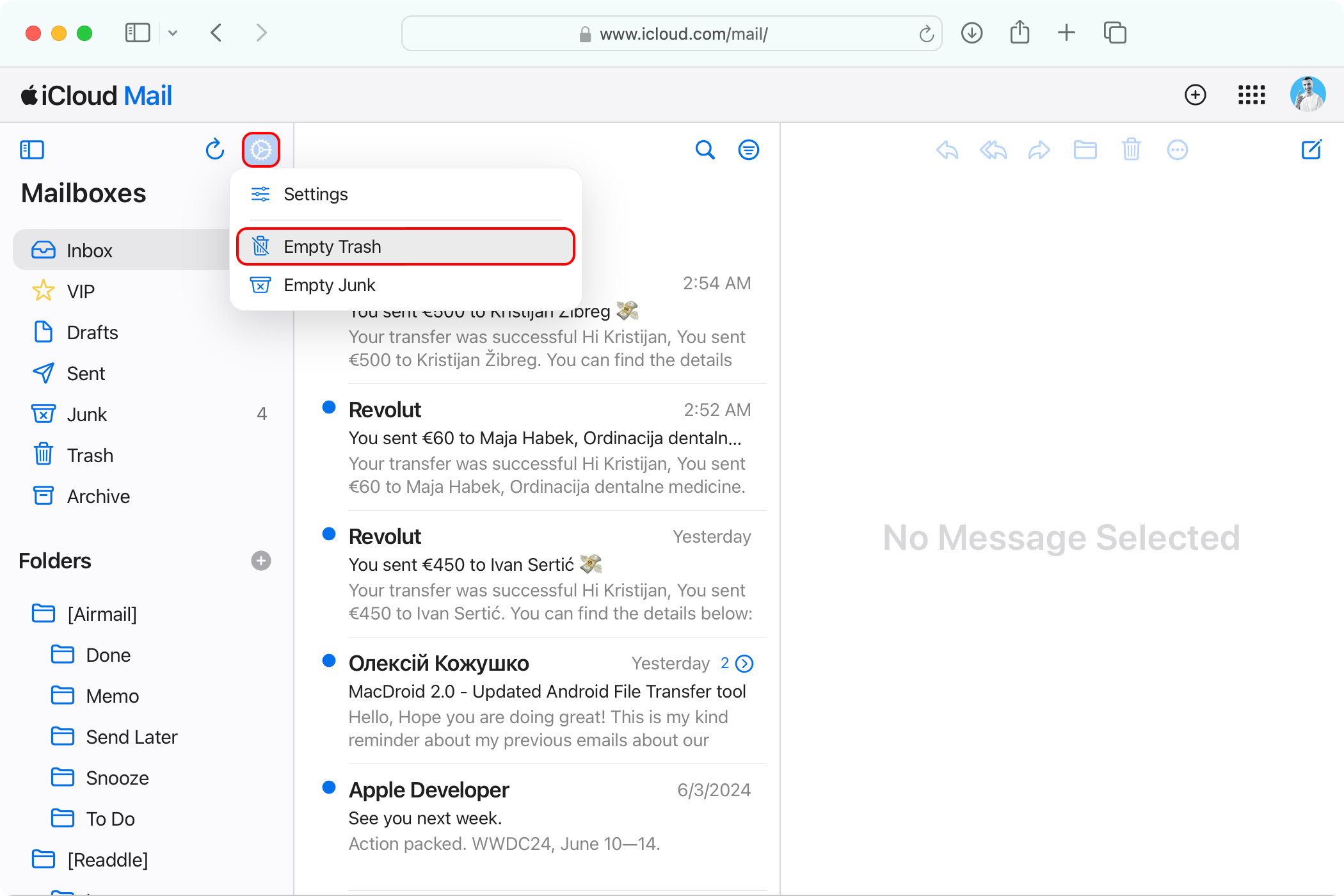
When you delete emails, remember to empty the trash afterward to have them removed permanently and free up storage space.
You don’t need to delete your emails from Gmail, Outlook, or Yahoo as those services don’t store inboxes in iCloud but rather within their own cloud space.
Delete Old Chats and Messages Attachments
If you’ve set up the Messages in iCloud feature to sync your conversations across devices, storage usage can easily creep up to a couple of gigabytes. You can save some space by removing only message attachments clogging up your iCloud storage, especially photos and videos.
Open the chat thread in the Messages app, touch the recipient name at the top, and hit “See All” next to attachment types like “Photos,” “Videos,” or “Links” to view the items. Touch “Select” in the top-right corner, mark the items you’d like to trash, and hit “Delete.”
ALSO READ: The iPhone 16 Is Coming: Here’s What We Know So Far
The selected attachments will be removed from all your Apple devices.
You can also delete conversation threads with no attachments. But those are typically only a few kilobytes each, and you may want to keep them anyway.
Consider Upgrading Your iCloud Storage (How to Free Up iCloud Storage Space)
You can’t free up iCloud space without deleting stuff, so if none of the above are options you’re willing to consider, you’ll need to buy more iCloud storage. In that case, you’ll be able to share your purchased storage with up to five other people via the Family Sharing features
iCloud+ storage is also included in the Apple One bundle, which combines multiple services at a discounted price. The $20/month tier includes 50GB, the $26/month one offers 200GB, and the flagship $38/month tier offers 2TB.
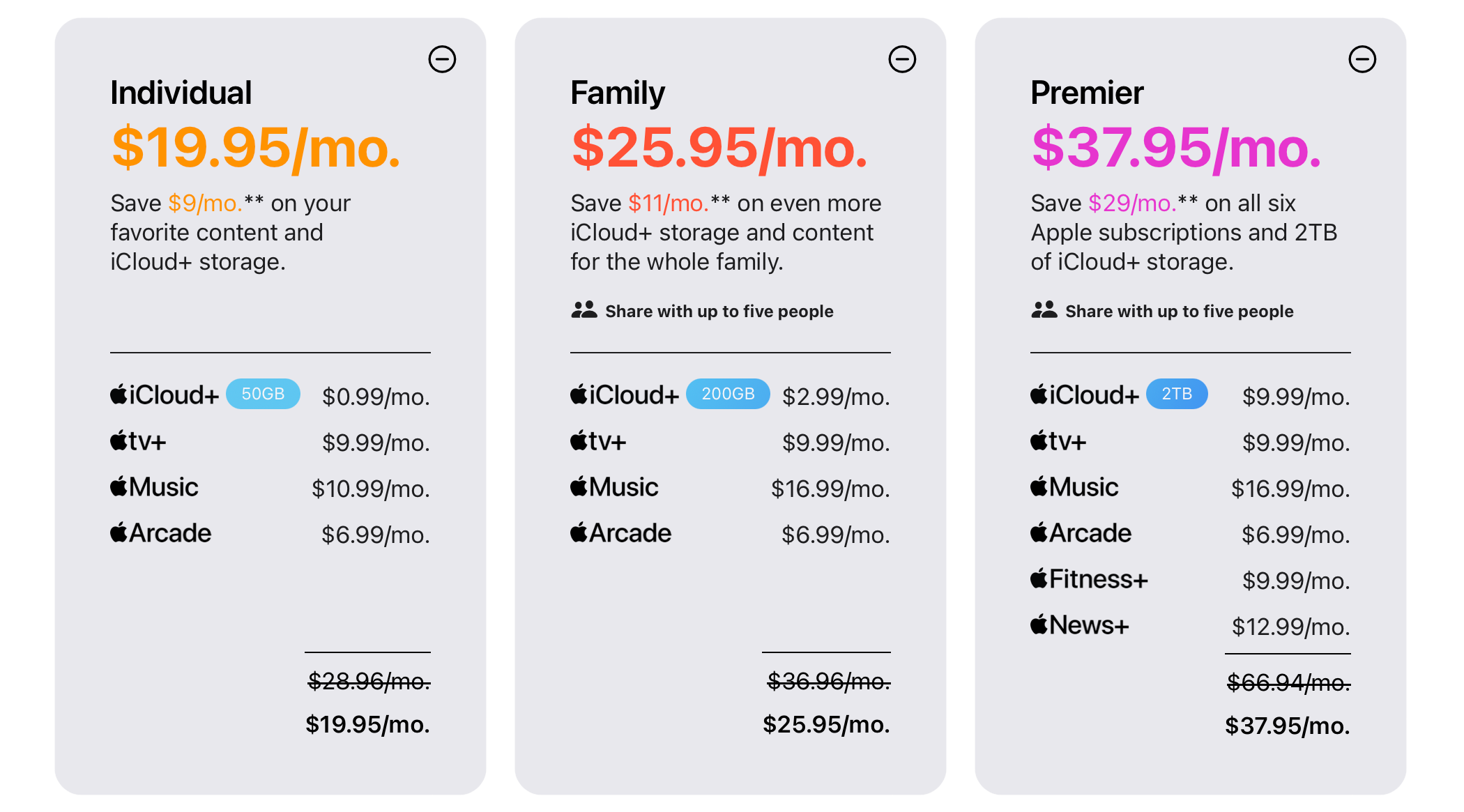
If that wasn’t enough, you can subscribe to Apple One and also buy one of the five iCloud+ storage plans to get a whopping 14TB of cloud-based storage.
If you’re still low on iCloud storage after performing all the steps above, use the Files app on iPhone or Finder on Mac to delete any additional files or folders you no longer need. Also, look into the Voice Memos app, which stores audio recordings in iCloud.
If you don’t want to pay for cloud storage, perform a little spring-cleaning of your iCloud now and then to ensure you have enough space to sync your settings and essential data across devices.