How to hide the search bar on Windows 10 and Windows 11
How to hide the search bar on Windows 10 and Windows 11Microsoft allows users to customize how the search box in the taskbar looks. Here’s how to regain space by hiding or making the search box smaller in a few steps.

The search box on Windows taskbar takes a large amount of space by default. (Willy’ Photo)
Last month, Microsoft announced that it will start removing Cortana from Windows sometime later this year. While the tech giant is waving goodbye to its voice assistant, the search box, which takes up a huge chunk of space on the taskbar, is here to stay for a while.
Introduced with Windows 10, the feature also made its way to the latest iteration of Microsoft’s operating system – Windows 11. If you are looking for a way to get rid of the search box or make it less distracting, here’s a quick guide that can help you reclaim that sweet real estate on the taskbar.
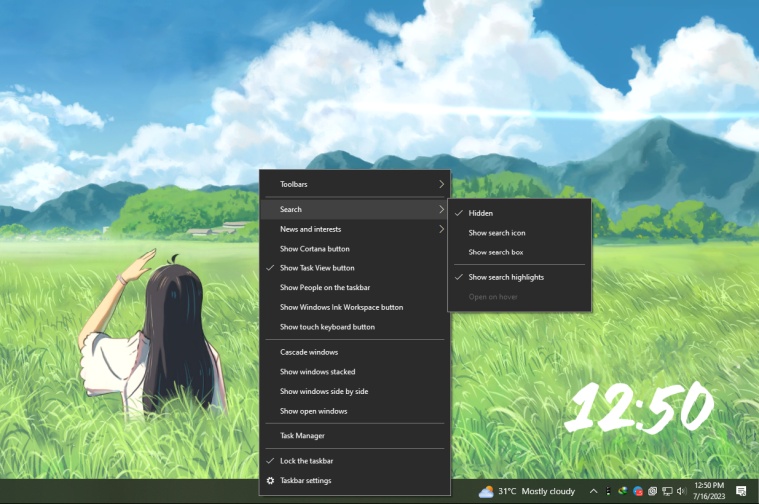
Customizing the search box on Windows 10 is as easy as 1,2,3. (Willy’ Photo)
How to hide the search box on Windows 10
Hiding or unhiding the search box on Windows 10 is really easy.
To hide the search box, simply right-click on an empty area on the taskbar.
On the menu that opens, head over to ‘Search’ and tap on ‘Hidden’.
If you want to make the search bar smaller, select ‘Show search box’.
To unhide the bar, click on ‘Show search bar’ and you are done.
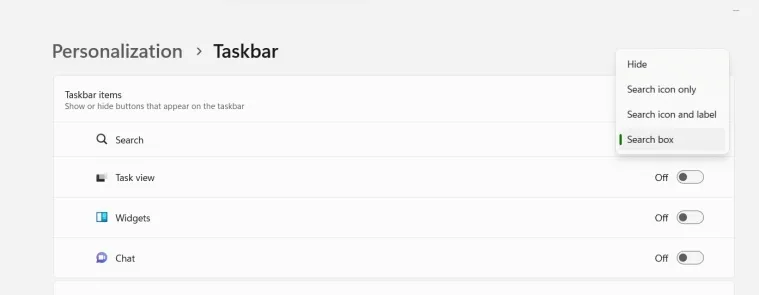
How to hide the search box on Windows 11
The process to hide the search bar is slightly different on Windows 11.
To hide the search box, right-click on the taskbar and head over to ‘Taskbar settings’.
Now, select Taskbar items to expand the section and toggle the ‘Search’ switch to ‘Off’.
Note: If you wondering how to use the search function in Windows after hiding the box, just open the start menu and start typing. The Windows Search box will automatically show search results.