
Watching your Android phone’s battery life diminish within a day used to be a real struggle. However, everything turned around once you disabled some unnecessary settings. Nowadays, your phone stays by your side from sunrise to sunset without any issues. If you’re facing similar battery problems, here are some settings you might want to tweak.
Maximize Your Android Phone’s Battery Life
- Hibernate Unused Apps
- Turn Off the Always-On Display
- Fine-Tune Screen Timeout
- Optimize Refresh Rate
- Activate Power Saving Mode
- Disable Wi-Fi Scanning
- Turn Off Location Services
- Optimize Battery Usage for High-Consumption Apps
- Enable Adaptive Brightness
Put Unused Apps to Sleep (Make Your Android Phone’s battery Last Longer)
Putting unused apps to sleep stops their background activity, thereby reducing battery consumption.
To put an app into a deep sleep on a Samsung Galaxy phone, open the Settings app and navigate to Battery > Background Usage Limits. Next, tap on “Deep Sleeping Apps” to open the list. Then, tap the ‘+’ icon in the top-right corner, select the apps you want to add by checking the circles beside them, and tap “Add” in the bottom-right corner.
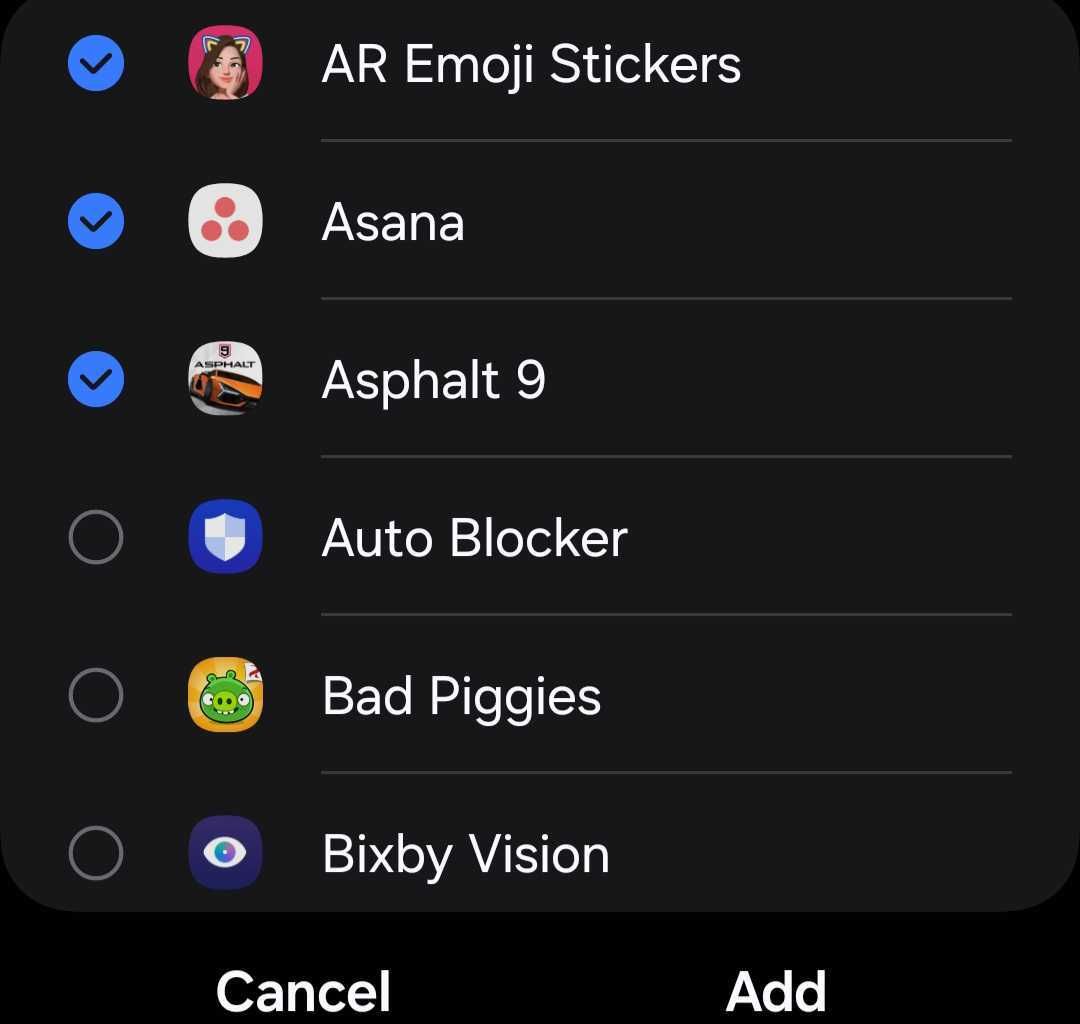
On Pixel phones, open the battery settings and tap “Battery Usage.” Then, locate and tap on the app for which you want to disable background activity, and turn off the toggle next to “Allow Background Activity.”
ALSO READ: How to See Your Android Phone’s Processor and Speed
Disable Always-On Display
The always-on display feature keeps a portion of your screen active to show the time, notifications, and other information even when the phone is idle. While convenient, it continuously uses power. Turning off this feature can reduce battery consumption, helping your phone last longer.
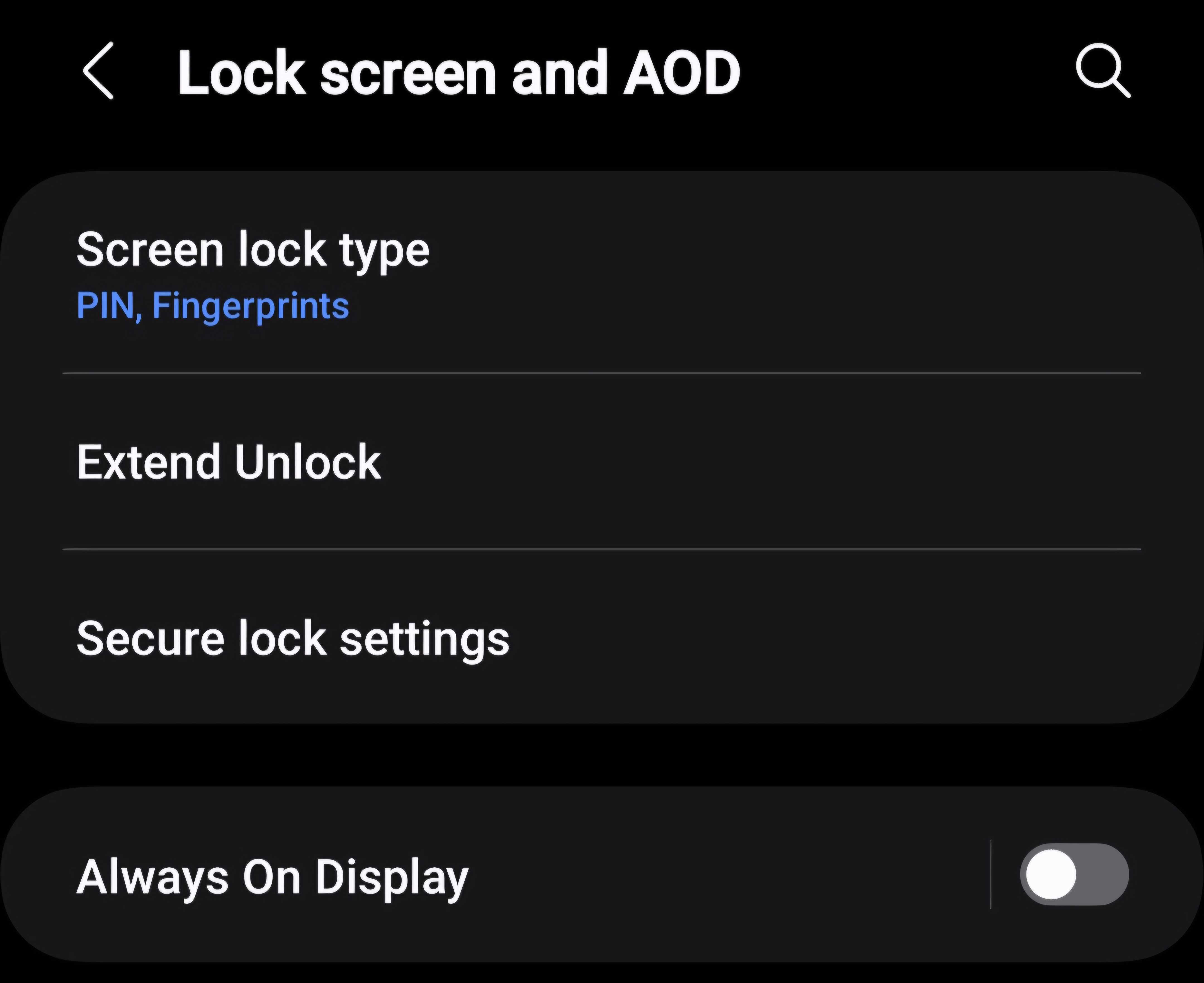
To turn off this feature on a Galaxy phone, open the Settings app, navigate to “Lock Screen and AOD,” and switch off the toggle next to “Always On Display.”
Adjust Screen Timeout
Screen timeout refers to the duration your phone’s display remains on when you’ve stopped actively using it. After this time, it automatically turns off. By reducing the timeout duration, your phone’s display will turn off more quickly, saving battery power. To adjust this setting on a Galaxy phone, open “Settings” and navigate to Display > Screen Timeout.
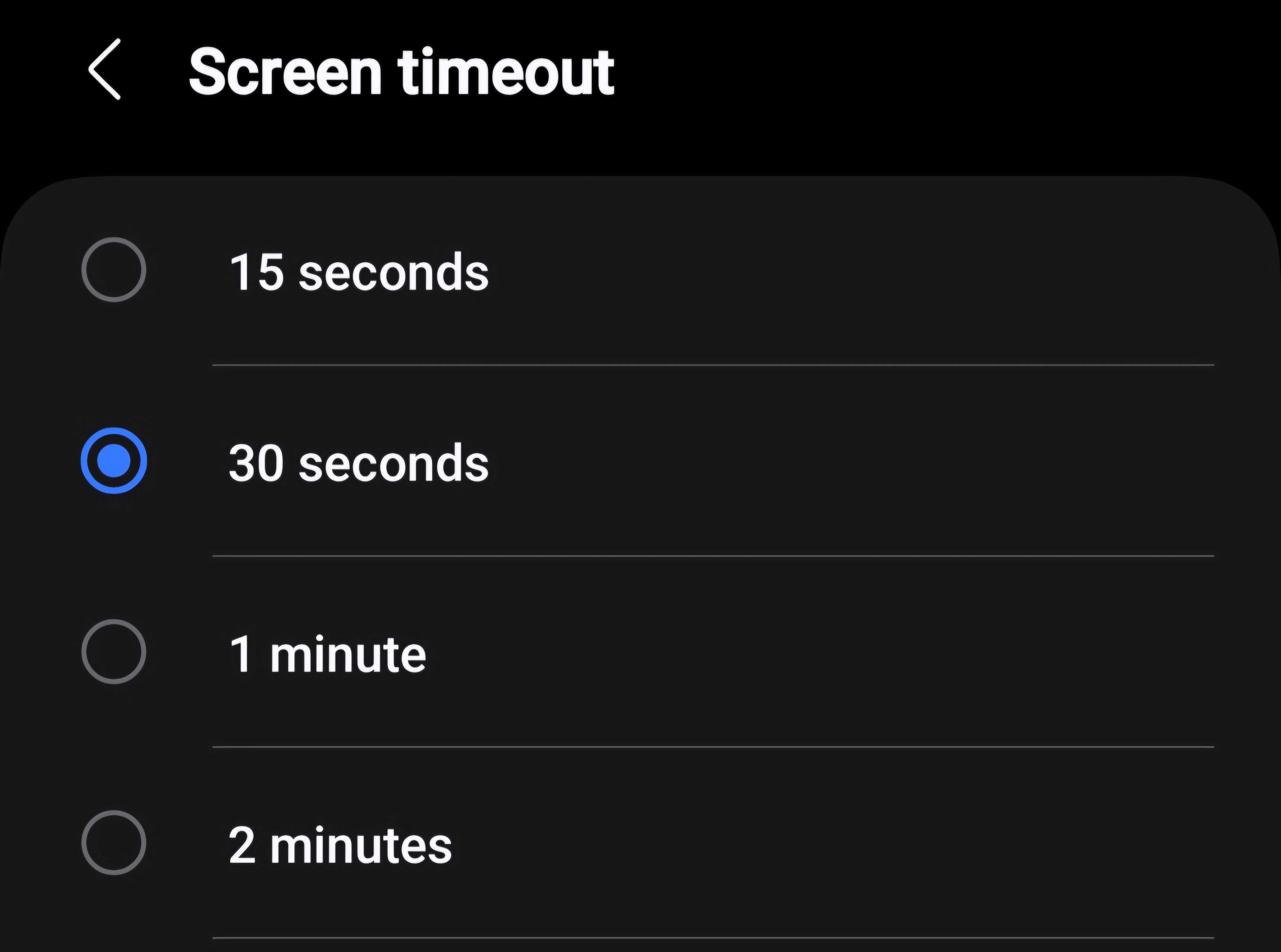
Select a shorter timeout duration, such as 30 seconds, to ensure your phone’s screen doesn’t stay active longer than necessary when left idle.
ALSO READ: Secret Codes to Test Used Android Phones Before Buying Them
Adjust Refresh Rate
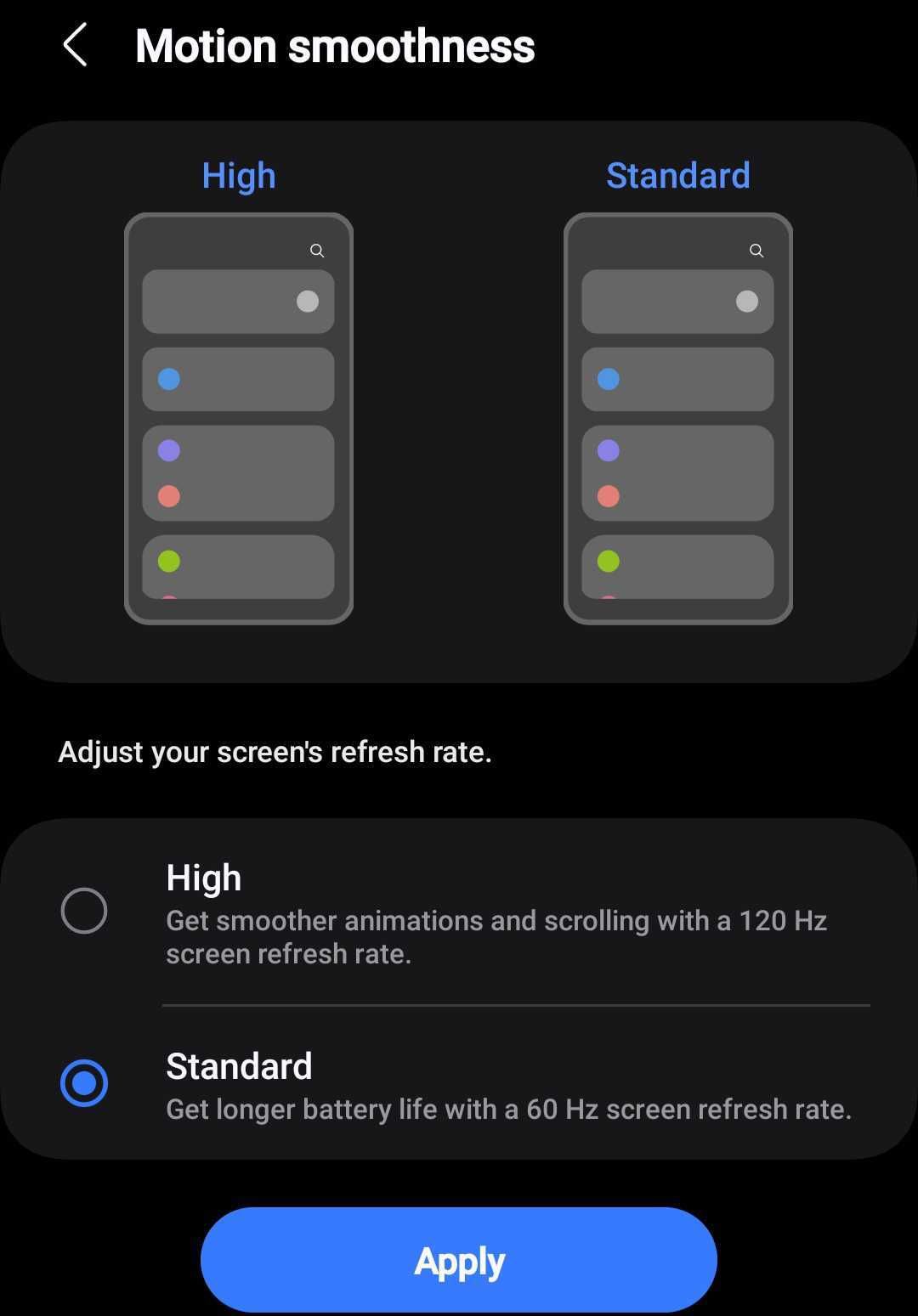
Refresh rate refers to how often your screen updates per second. Higher refresh rates provide smoother visuals but consume more battery power. Lowering this frequency can help conserve your battery. To adjust the refresh rate on a Galaxy phone, open Settings and navigate to Display > Motion Smoothness.
Then, select “Standard” if it’s set to “High,” and tap “Apply.” This will reduce the refresh rate from 120 Hz to 60 Hz, significantly reducing battery consumption. However, it will affect the visual display.
Use the Power Saving Mode
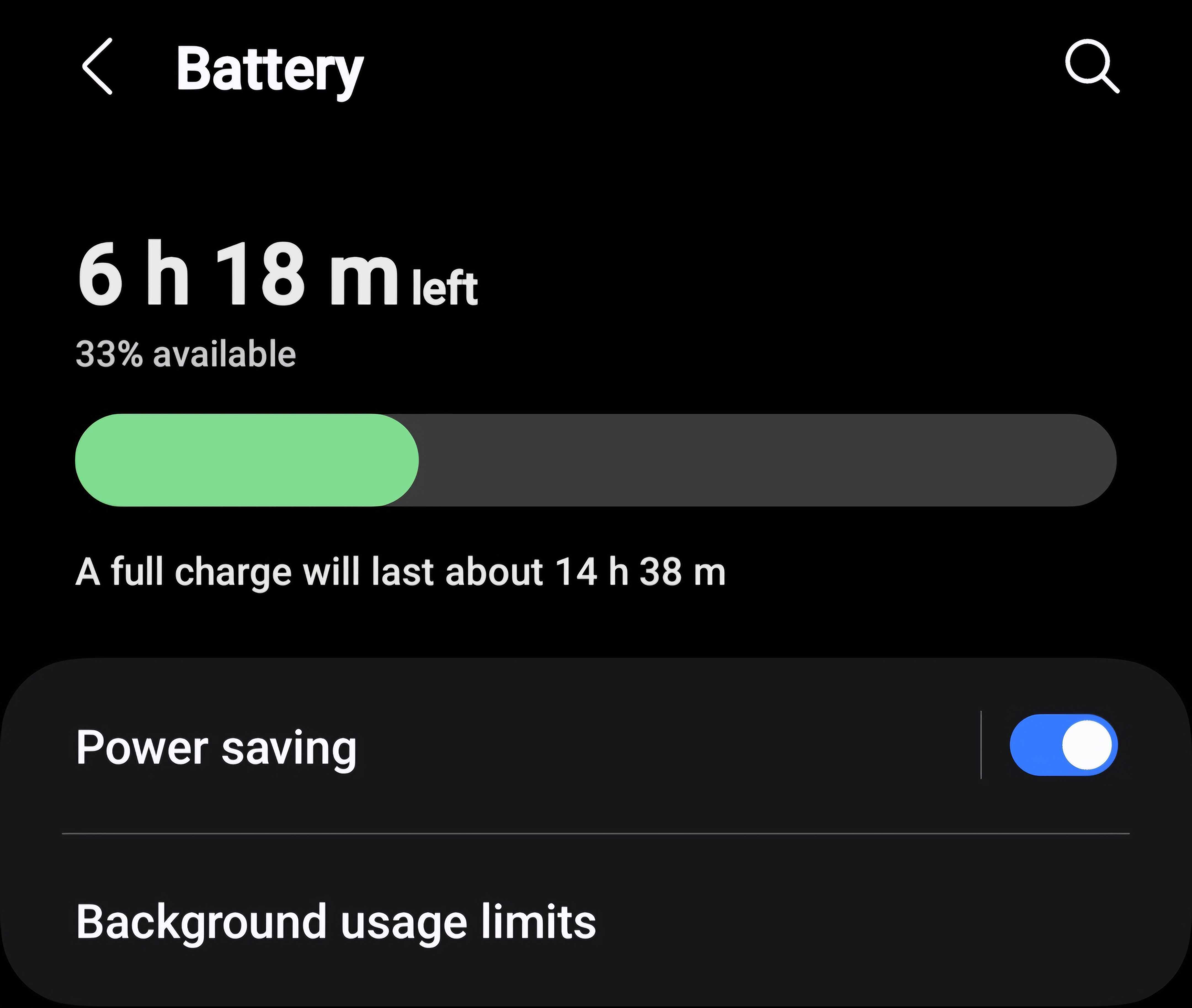
Enabling power-saving mode reduces screen brightness, limits background activity, minimizes visual effects, turns off vibration and haptic feedback, and turns off the always-on display, among other features. By turning off these functions, your phone consumes fewer battery resources, extending battery life.
You can activate this feature when using your phone casually or when it’s idle to conserve battery power. To enable it, open the Settings app, go to “Battery,” and toggle on “Power Saving.” You can also tap on Power Saving to customize its settings, adjusting which features should be limited or disabled to suit your needs.
Make Your Android Phone’s battery Last Longer: Turn Off Wi-Fi Scanning
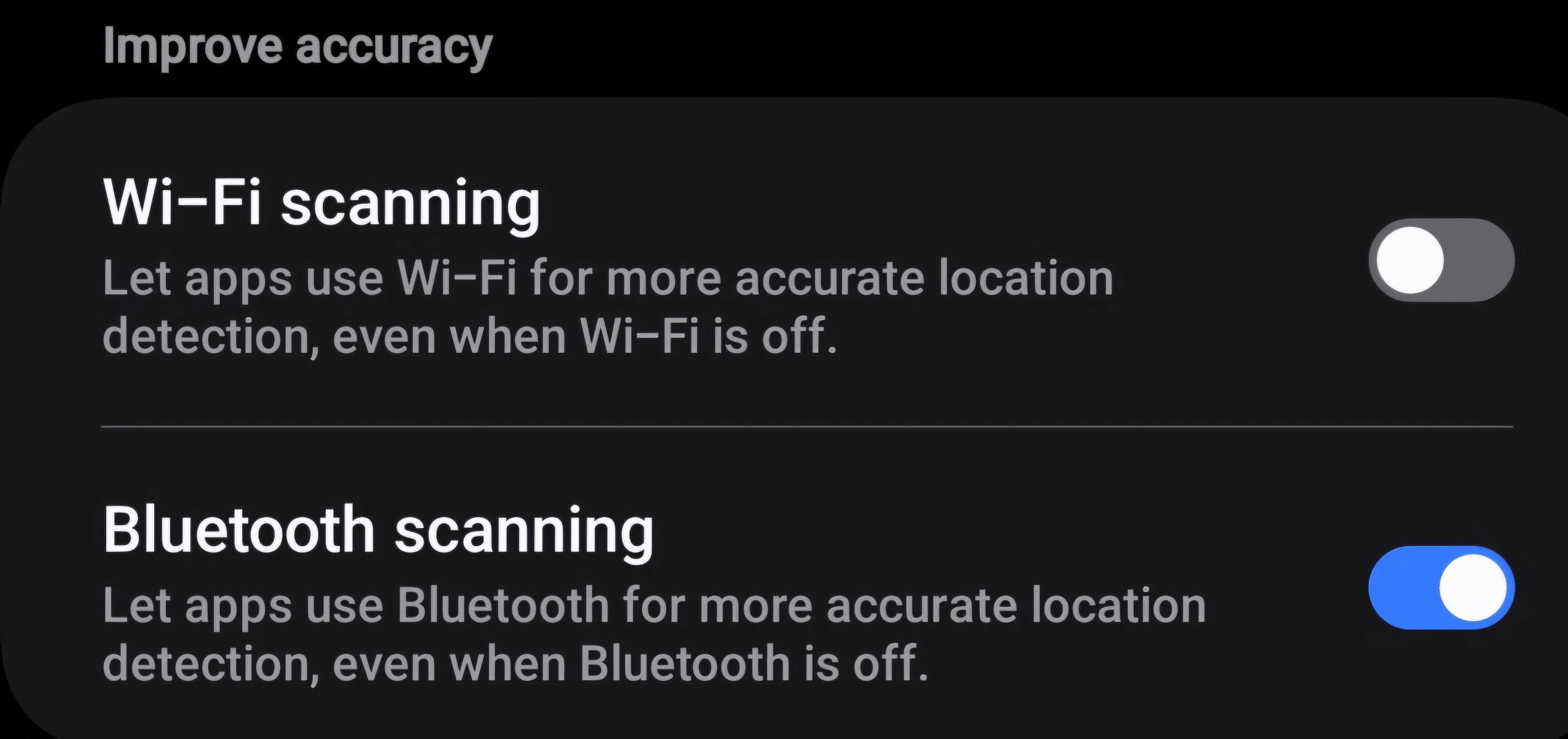
Wi-Fi scanning is a feature on Android phones that continuously searches for available Wi-Fi networks, even when Wi-Fi is turned off. While it improves the accuracy of location-based services, this constant scanning can drain your battery. Disabling it stops the background scanning, thus reducing battery consumption.
To turn off this feature on a Galaxy phone, open the Settings app, go to Location > Location Services, and turn off the toggle next to “Wi-Fi Scanning.”
Disable Location Services
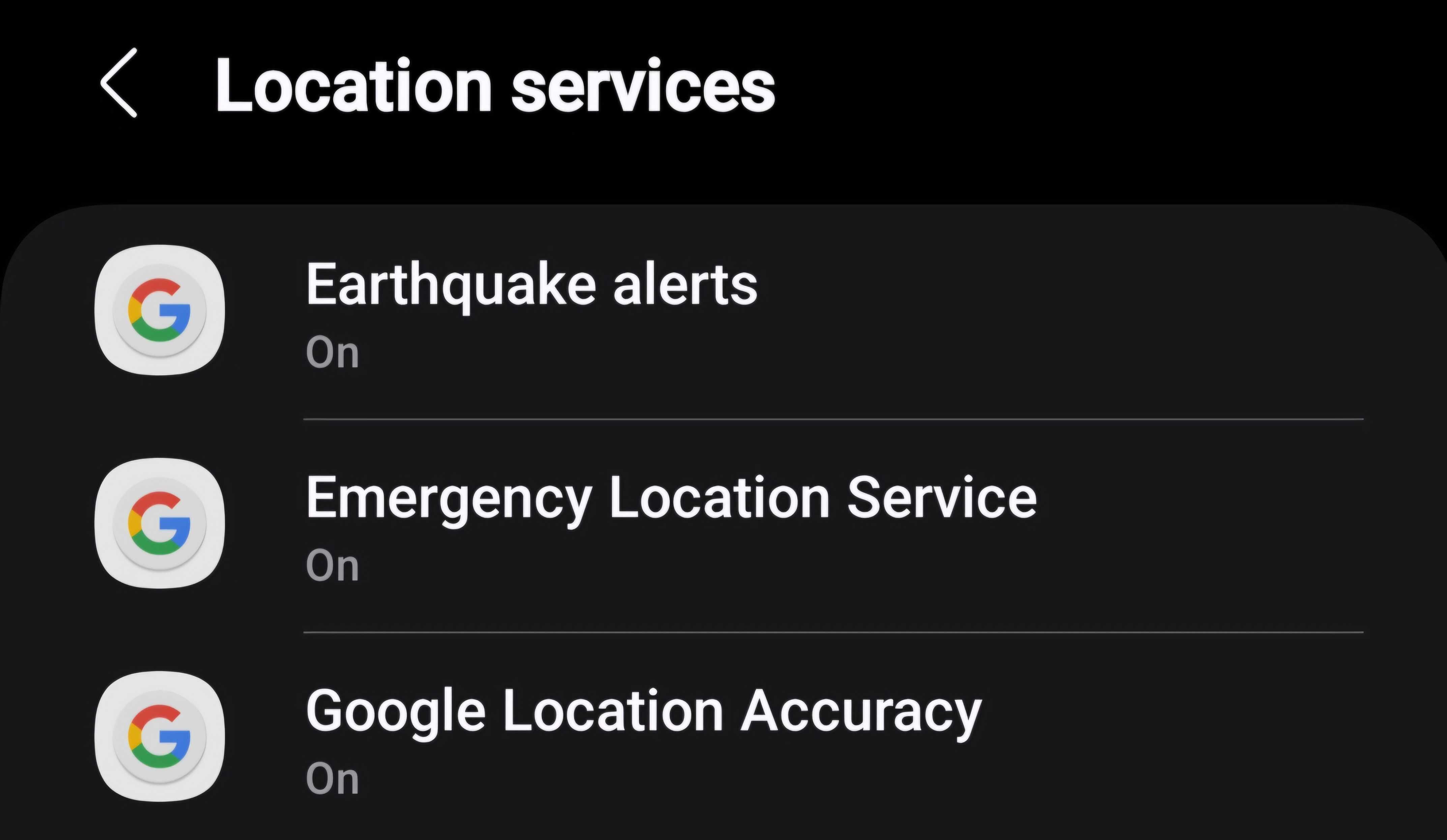
Besides Wi-Fi scanning, there are other location services that, while useful, can continuously drain your battery. These include:
- Earthquake Alerts: Detects earthquakes near your location and sends an alert with an initial estimated magnitude and distance.
- Emergency Location Service: Sends your location to emergency responders whenever you text or call an emergency number.
- Google Location Accuracy: Used by Google to improve location accuracy and location-based services.
To turn off these features on a Galaxy phone, open the Settings app, go to Location > Location Services, tap on each service mentioned above, and turn off its toggle.
Optimize Battery Usage for Power-Hungry Apps
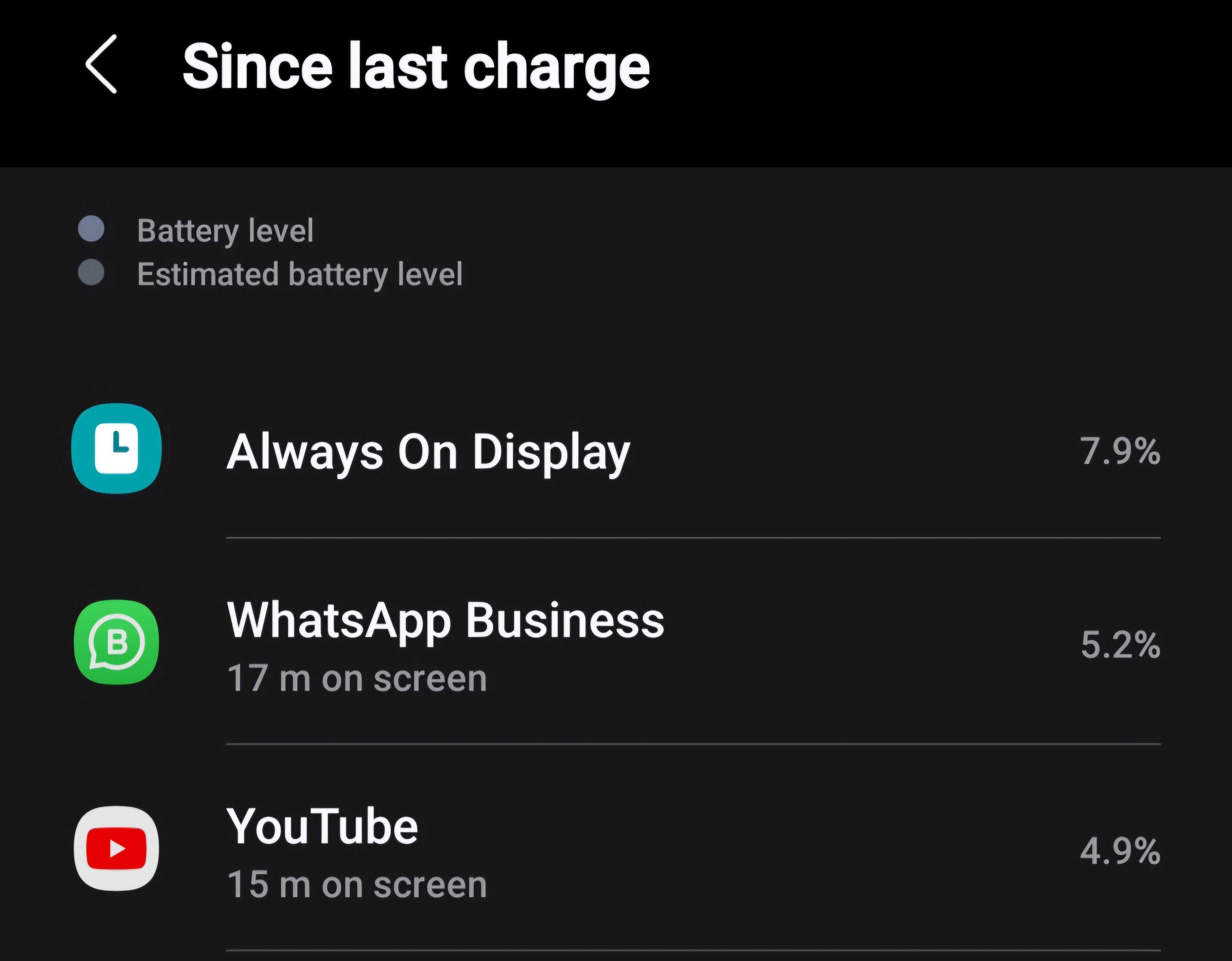
Some apps consume significantly more battery than others. Identifying these battery-draining apps and adjusting their settings can reduce power consumption. For example, you can put a power-hungry app to deep sleep if it isn’t already, stop receiving notifications from it, limit its screen time, or turn off unnecessary settings like constant location tracking.
To find the apps draining your Galaxy phone’s battery, open the Settings app and go to Device Care > Battery. Scroll down to see which apps or features consume the most battery.
Make Your Android Phone’s battery Last Longer: Enable Adaptive Brightness
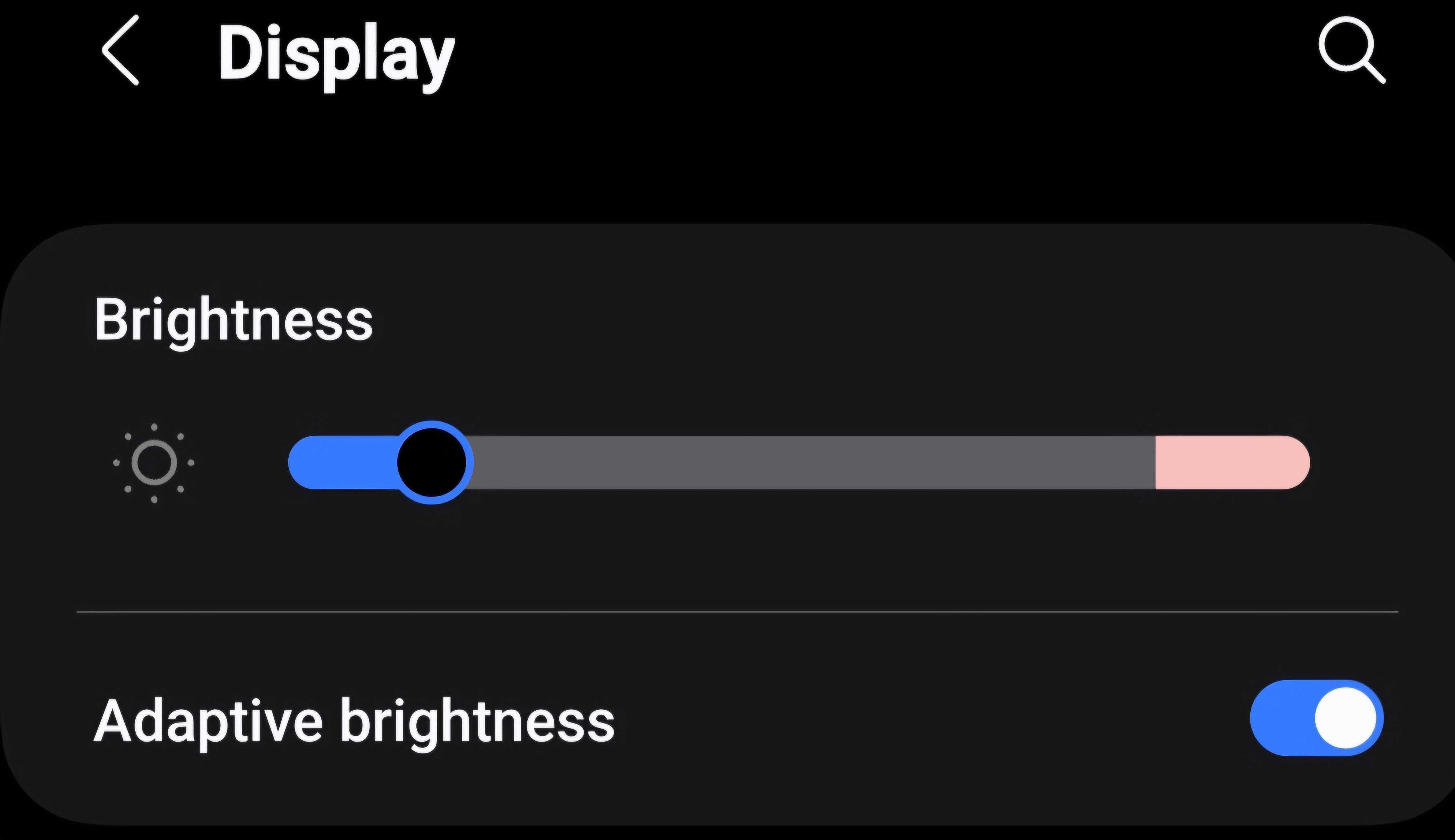
I had the habit of manually increasing the screen brightness and then forgetting to lower it when moving to an area with better ambient light. Then, I started using the adaptive brightness feature, which automatically adjusts the screen brightness based on the surrounding light conditions. It helped me manage my battery usage more effectively.
Enabling this feature ensures your screen is bright enough for good visibility without straining your eyes and also conserves battery life. To enable this feature on a Galaxy phone, open the Settings app, go to “Display,” and turn on the toggle next to “Adaptive Brightness.” You’ll see your phone adjusting the brightness level based on the surrounding light conditions.
Adjusting the above settings can significantly reduce unnecessary power consumption and help the phone last longer on a single charge. While we can’t guarantee that these adjustments will surely make your phone last more than one day, as other factors also come into play, we hope they will help improve battery life.
With a single charge lasting longer than usual, you’ll need to charge your battery less frequently, which is ultimately beneficial for your battery’s health as well.